When you need to remember when your contract ends, how much the deposit was or what the wifi password is, you do not have to dig through paperwork. The VinaBos app keeps your contract and room information and has it ready on your phone. You can only see your own contract.
Before you start
- You are signed in to the app; see Sign in to the VinaBos app.
- Your contract has been created by your landlord and linked to your profile in VinaBos.
Steps
See your room on Home
Open Home. The Your room block shows the room you rent, the number of occupants, your Current balance and your Current contract. Tap View details to open the room's full information.
Open the contract list
Tap Contracts under Quick links on Home. The app lists your Contracts by room with the number of contracts and how many are active. You can filter by All, Active or Ended.
Read the contract details
Choose a contract to see the Rent, Start date, End date and the terms. Your landlord can see this same contract on their side, as shown below.
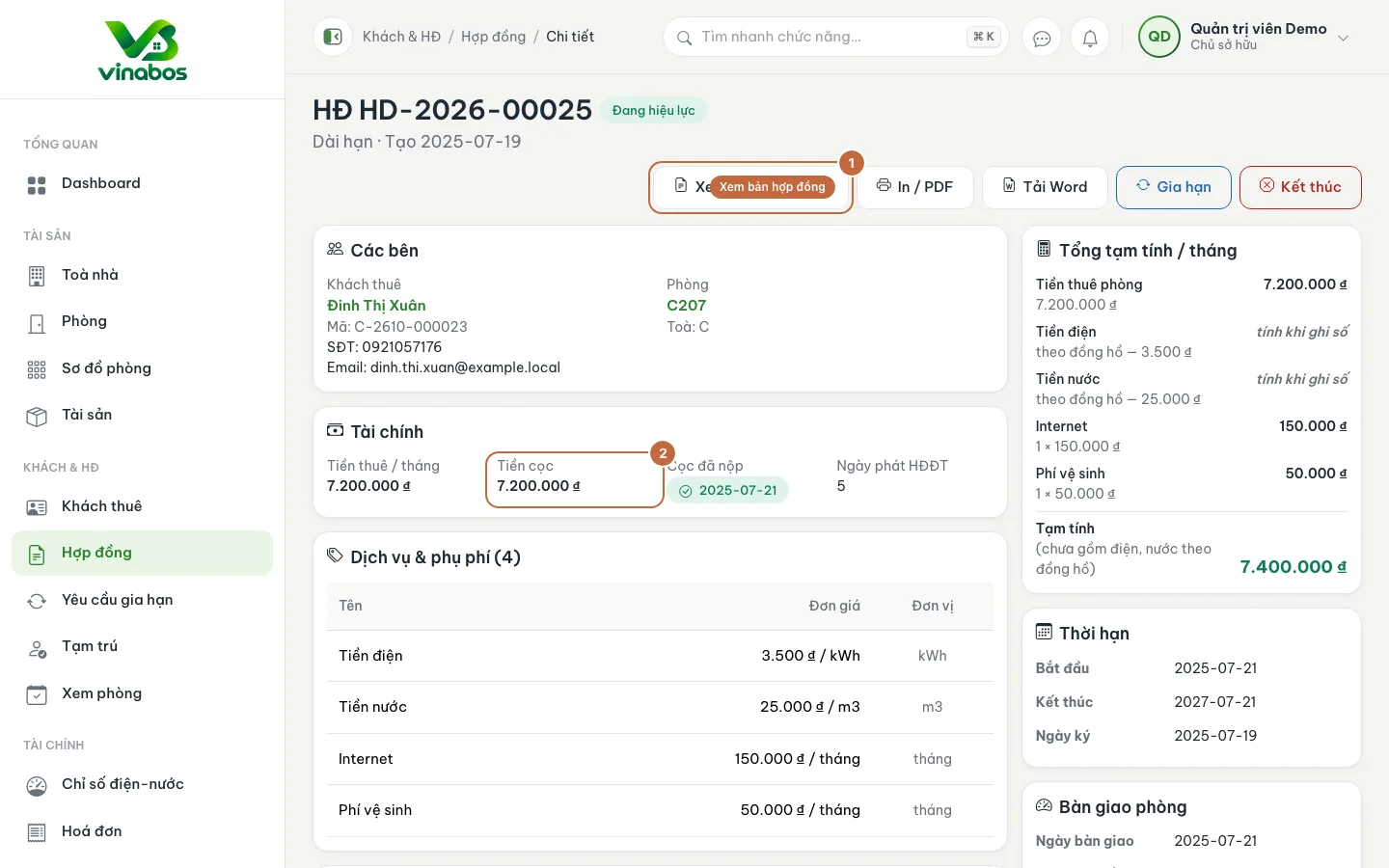
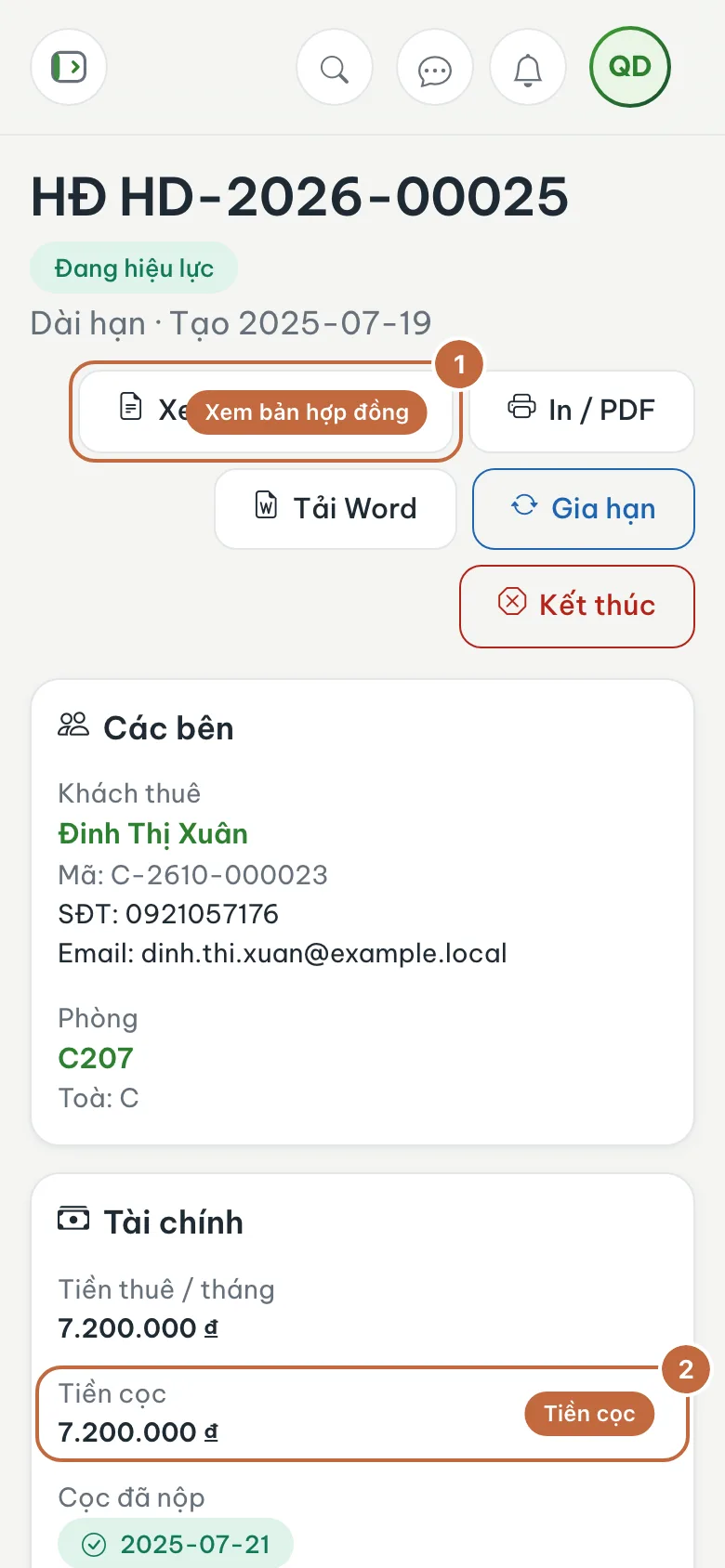
The contract as seen by the landlord: term, deposit (②) and the View contract button (①) Download the contract
Tap Download contract to save a PDF to your phone, handy when you need to submit it to an authority or keep it.
See room and building information
In the room details you can see Rent / month, the electricity and water rates, the Wifi name and password, Access hours, House rules, and the manager and landlord contact numbers (if your landlord entered them).
Take a screenshot or save the PDF contract in your personal notes. When you need to talk to your landlord, you have the document at hand.
This information is maintained by property management and you cannot edit it yourself. If something needs to change, send a support request to your landlord; see Report an issue and send a request.
FAQ
I cannot see any contract
Your contract may not be linked to your profile yet, or you may have moved out. The screen says "You have no contracts yet"; contact your landlord.
What if my contract has expired?
Ended contracts can still be viewed under the Ended filter. To renew, talk to your landlord.
Next step
Was this article helpful?
Thanks for your feedback!