
Every property words its contracts differently. Instead of retyping for each tenant, you write one contract template for the whole organization. Wherever something changes from contract to contract (tenant name, room number, rent, deposit...), you insert a variable, and VinaBos fills it in when a contract is created. This feature is available on every plan.
Before you start
- Your role can view and edit settings (usually the owner or a manager).
- Have your current contract file (Word or whatever you use) ready to copy from.
- Each organization has only one template. Changing it only affects contracts created afterwards.
Steps
Open Contract templates
In the menu, under the System group, click Settings, then choose Contract templates. The screen has the editor on the left and the Variables, Blocks and Custom fields tools on the right.
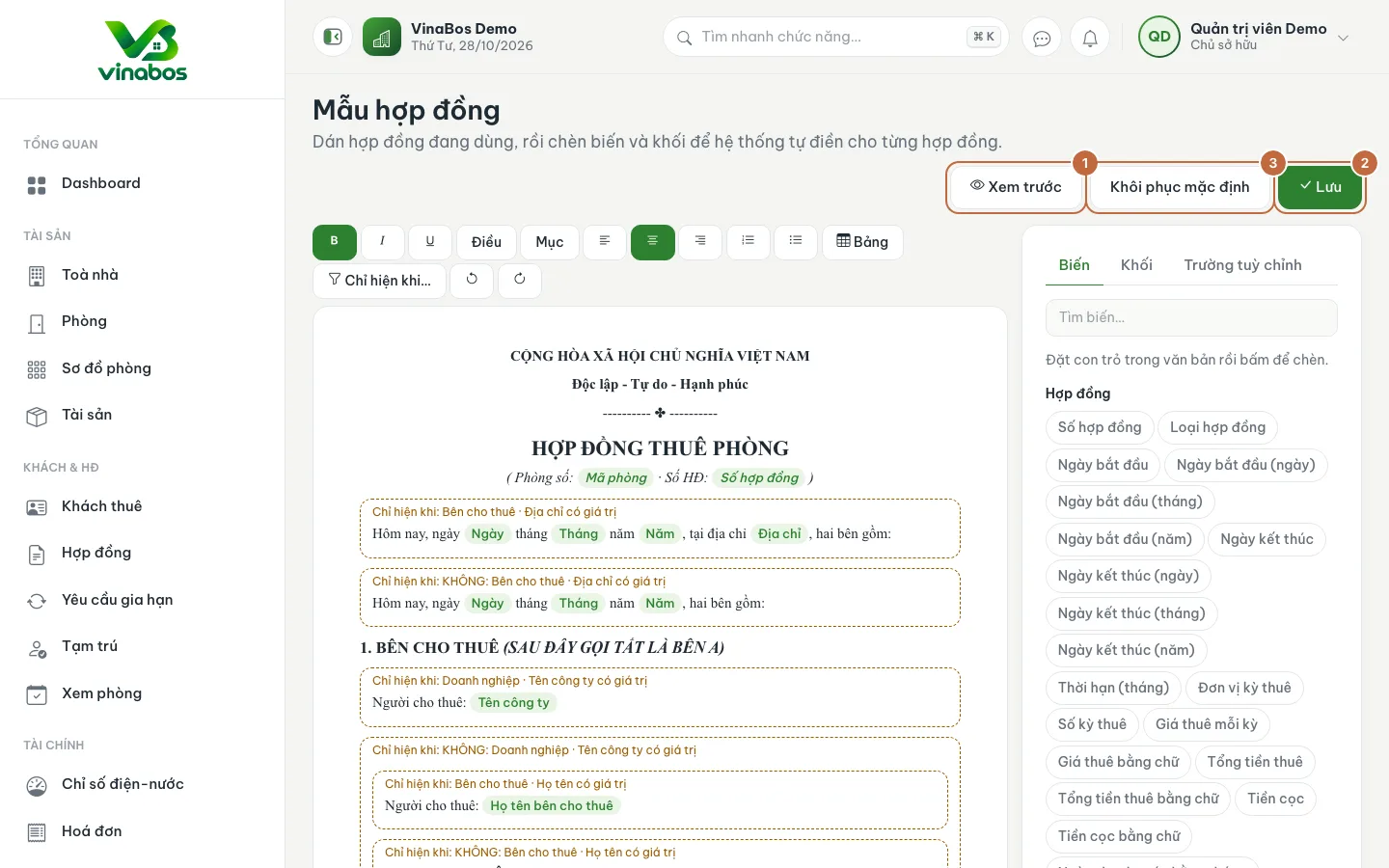
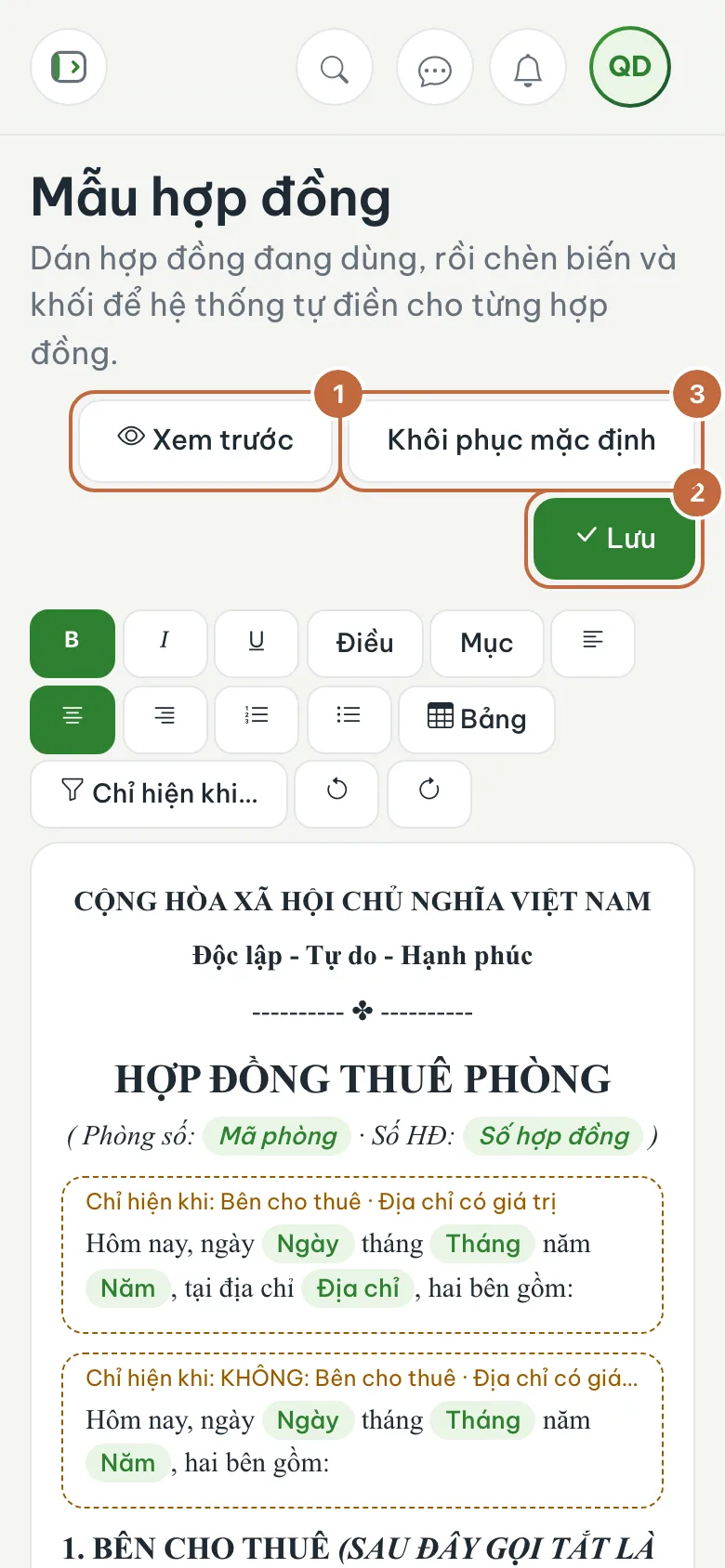
Contract template editor: Preview (①), Save (②) and Restore default (③) buttons Paste or edit the template text
Paste your contract into the editor, or edit the default template directly. The toolbar has bold, italic, underline, the Article and Section buttons for numbering, alignment, lists and Table.
Insert variables
Place the cursor where a value belongs, open the Variables tab (①) and click the matching variable, for example Contract number, Start date, Deposit. A variable shows up as a blue label in the text. Use the Search variables… box if the list is long.
Add blocks and conditions
The Blocks tab contains paragraphs that repeat according to each contract's data (for example the list of co-occupants) and hide themselves when there is no data; click Insert to place one in the text. The Show only when… button wraps a paragraph so it only appears when a condition is true, for example showing the company name line only when the landlord is a business. The Custom fields tab (②) lets you add your own fields: a Shared value is entered once here, while Enter per contract shows up in the create-contract form for staff to fill in.
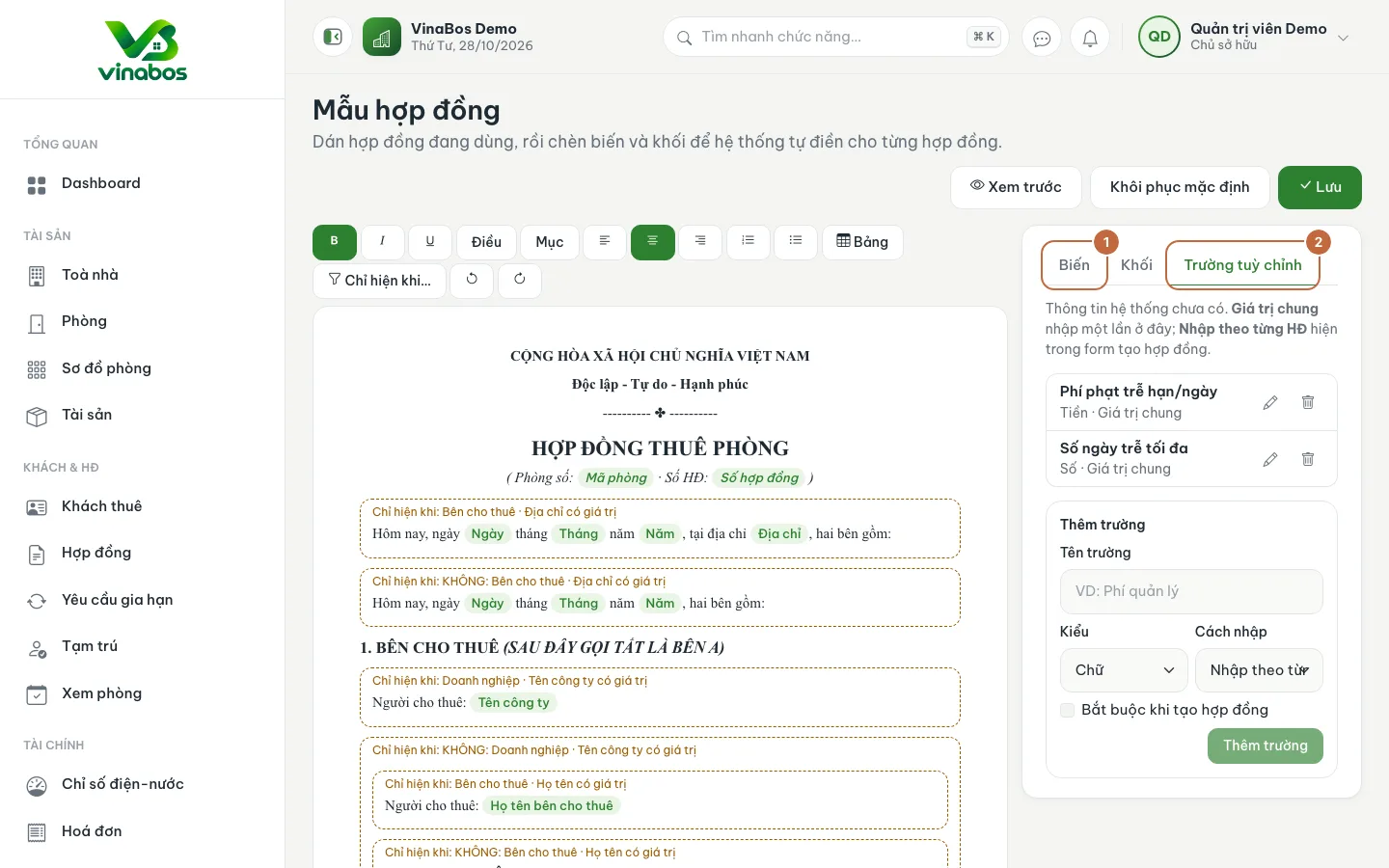
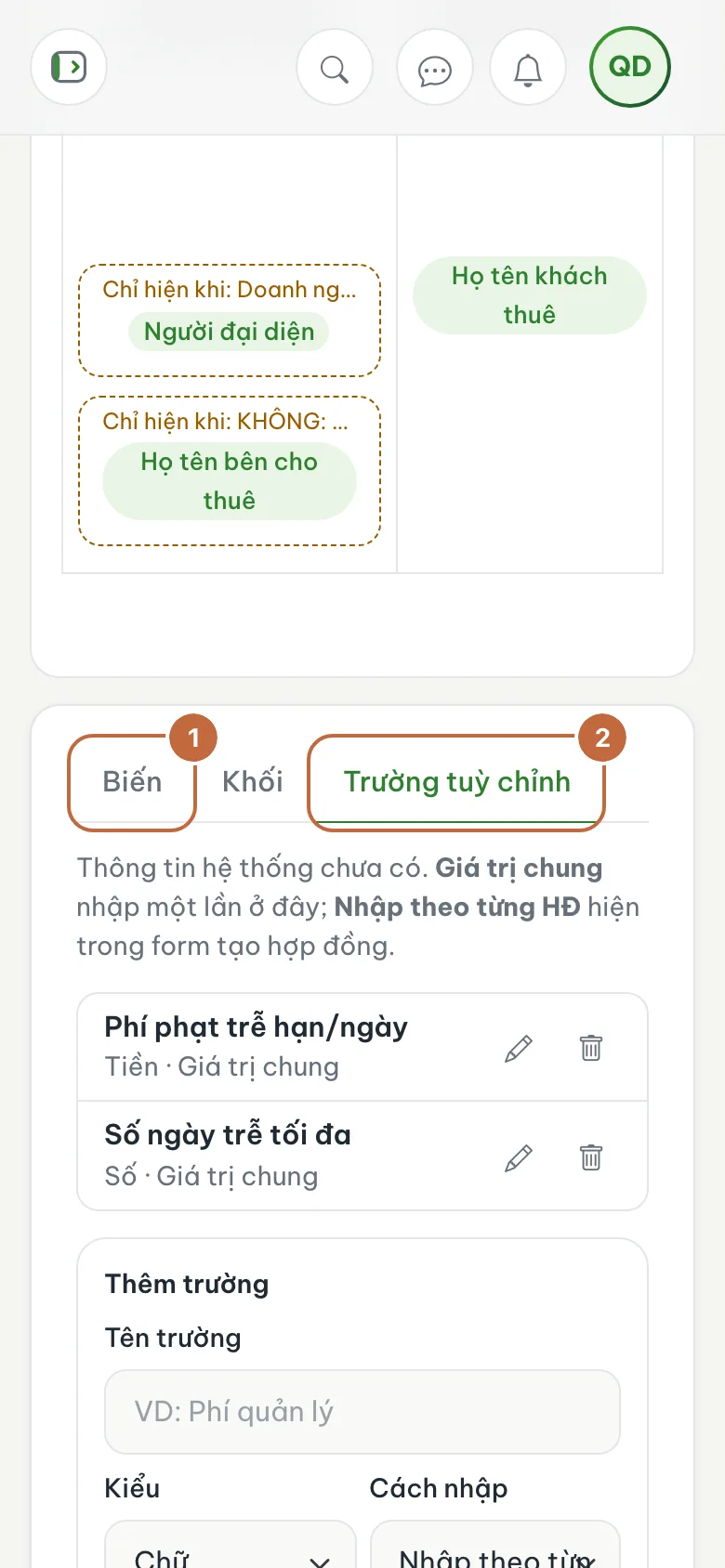
The tabs on the right: Variables (①) and Custom fields (②) Preview and save
Click Preview to see the template filled with sample data, check it carefully, then click Save. To start over, click Restore default (your custom fields are kept).
Write the template on a computer, where it is easier to work. After saving, create a trial draft contract to check the text was filled in correctly.
Once a contract is signed, its filled-in text is preserved. Editing the template later does not change signed contracts, so review the legal wording carefully before tenants sign.
FAQ
The system says the template was just changed elsewhere
Someone else saved the template before you. Choose to load the new version (discarding your unsaved changes), or copy your part out first before reloading.
How is this different from Contract settings?
Contract settings are default values such as the term, months of deposit and late fees. The Contract template is the contract document that is printed and exported for tenants.
Next step
Was this article helpful?
Thanks for your feedback!