When several people work in the system, you sometimes need to know who changed a room's rent or who deleted an invoice. The Activity log records create, update, delete and restore actions along with who did them and when. It is the tool that keeps things transparent and traceable when something goes wrong.
Before you start
- Your plan includes the Activity log feature.
- Your role has permission to view the log. Usually only the owner or a manager needs it.
Steps
Open the Activity log
In the menu, under the System group, click Activity log. The page shows the total number of records and a table with Time, Performed by, Action, Object and Description.
Filter by person
In the Performed by field (①) choose a staff member to see only what they did.
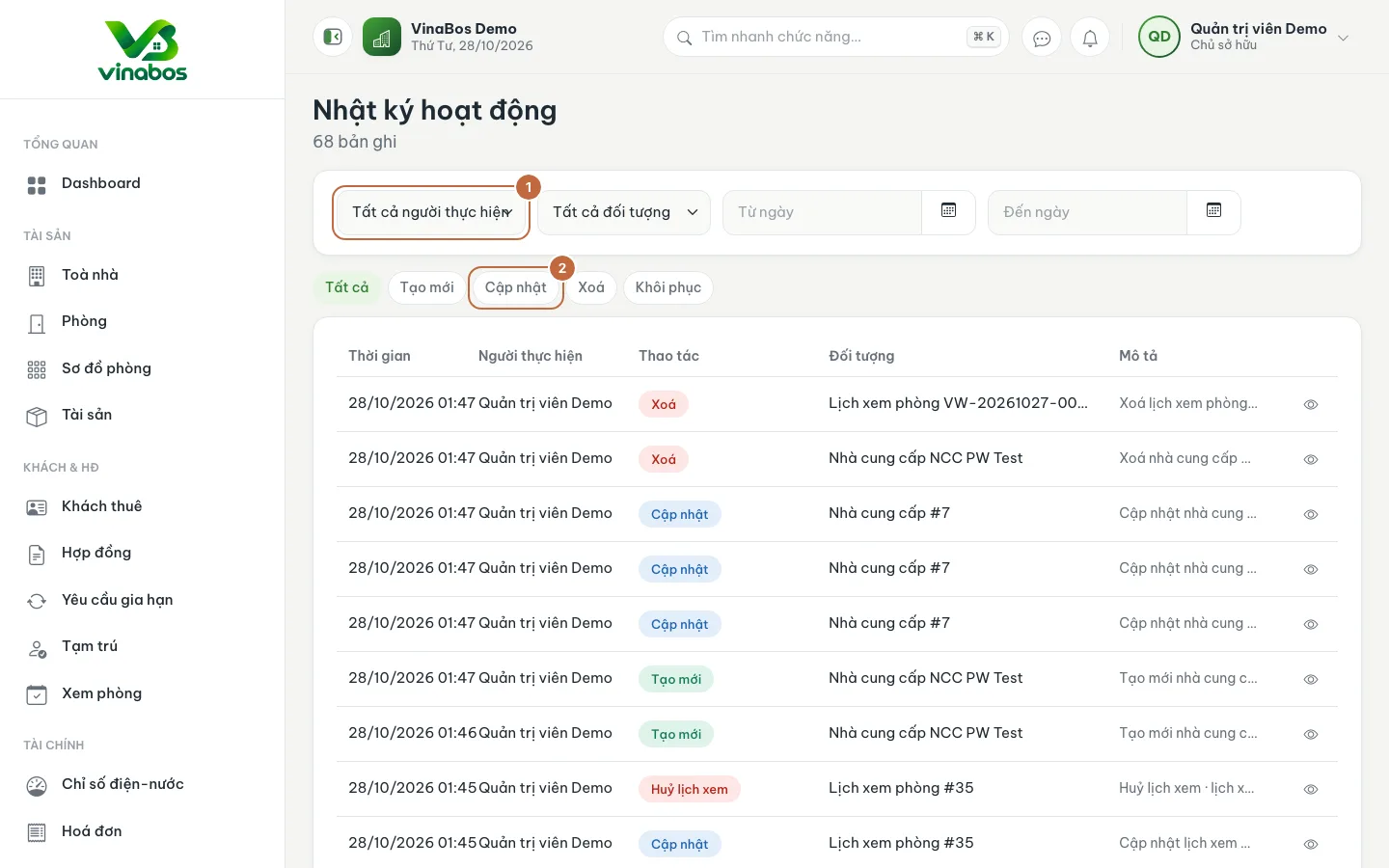
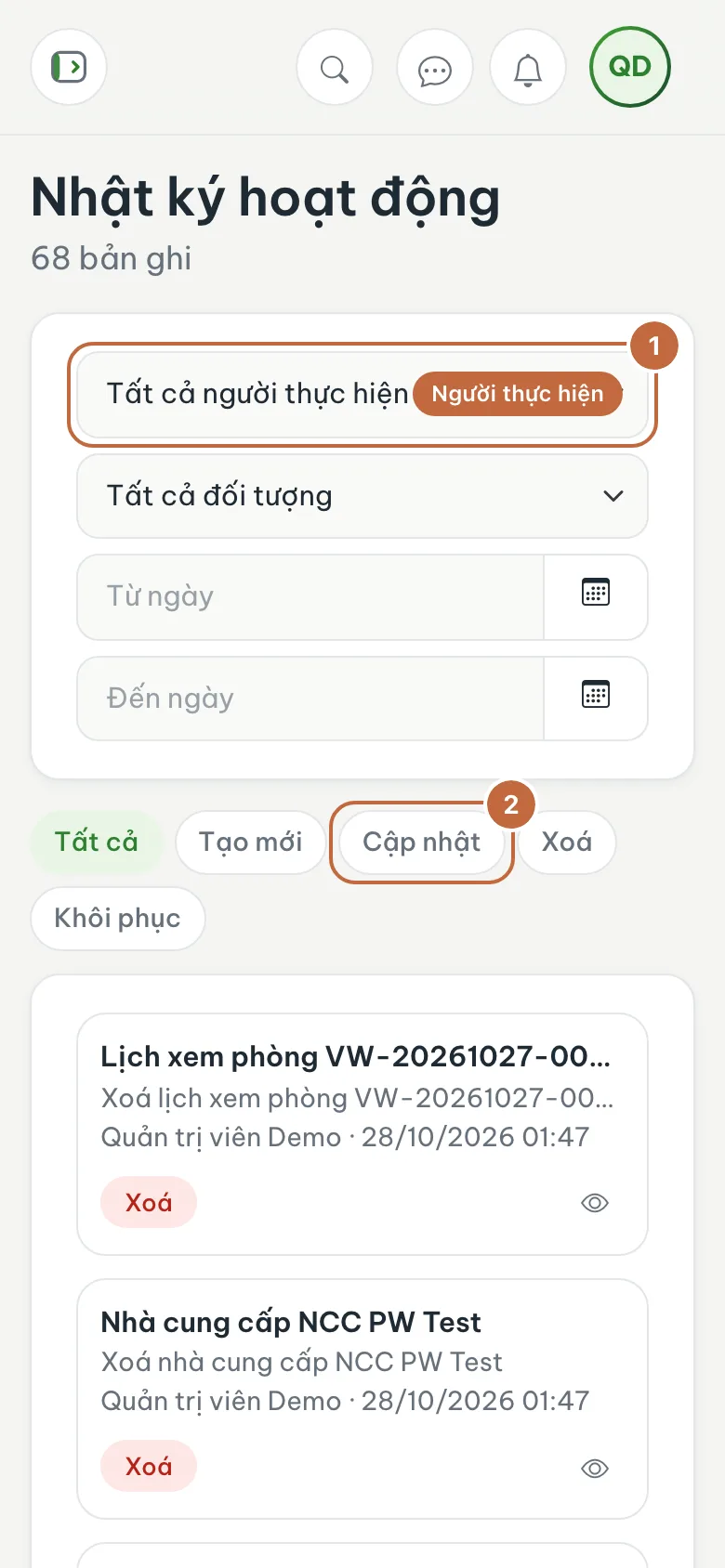
Activity log: the Performed by filter (①) and the Updated label (②) Filter by action, object and date
Click the Created, Updated (②), Deleted and Restored labels to see just one kind of action. The Object field filters by data type (contract, invoice...), and From date and To date limit the time range.
View the details of a record
Click the View details icon on a row to see what changed.
When data changes and nobody owns up to it, filter by Object and a date range, then scan the Updated or Deleted actions. You can usually find the cause within minutes.
The log is view-only and cannot be edited or deleted. Share the permission to view it carefully, because it contains activity from the whole organization.
FAQ
I cannot see Activity log in the menu
Your plan does not include this feature, or your role has not been granted permission to view the log. Ask the owner to check under Settings › Roles.
How long is the log kept?
The retention period is set by the system. If you need to look into older events, use the date filter and check early.
Next step
Was this article helpful?
Thanks for your feedback!