
When more people help run your property, such as an accountant, a building manager or operations staff, you can invite them to VinaBos and give each one a role. A role decides what they can see and do, so you can delegate without exposing data they do not need. It takes about 10 minutes.
Before you start
- Your role needs the create staff permission. To edit permissions you also need manage roles. The owner has every permission.
- You can only grant permissions you have yourself. A manager cannot create a role that is stronger than their own.
- Have the staff member's email, full name and phone number ready.
Steps
Look at the existing roles
Go to Settings › Roles. VinaBos has already created a few templates such as Manager, Accountant, Operations, Investor, plus the Owner role with every permission (not editable). Click a role name to view or edit it, or click Create role to make a new one.
Adjust a role's permissions
Open a role and enter the Role name and Description. Below is the list of permissions grouped by area (①). Tick individual permissions or use "Select all" for a whole group. Click Save (②) when done.
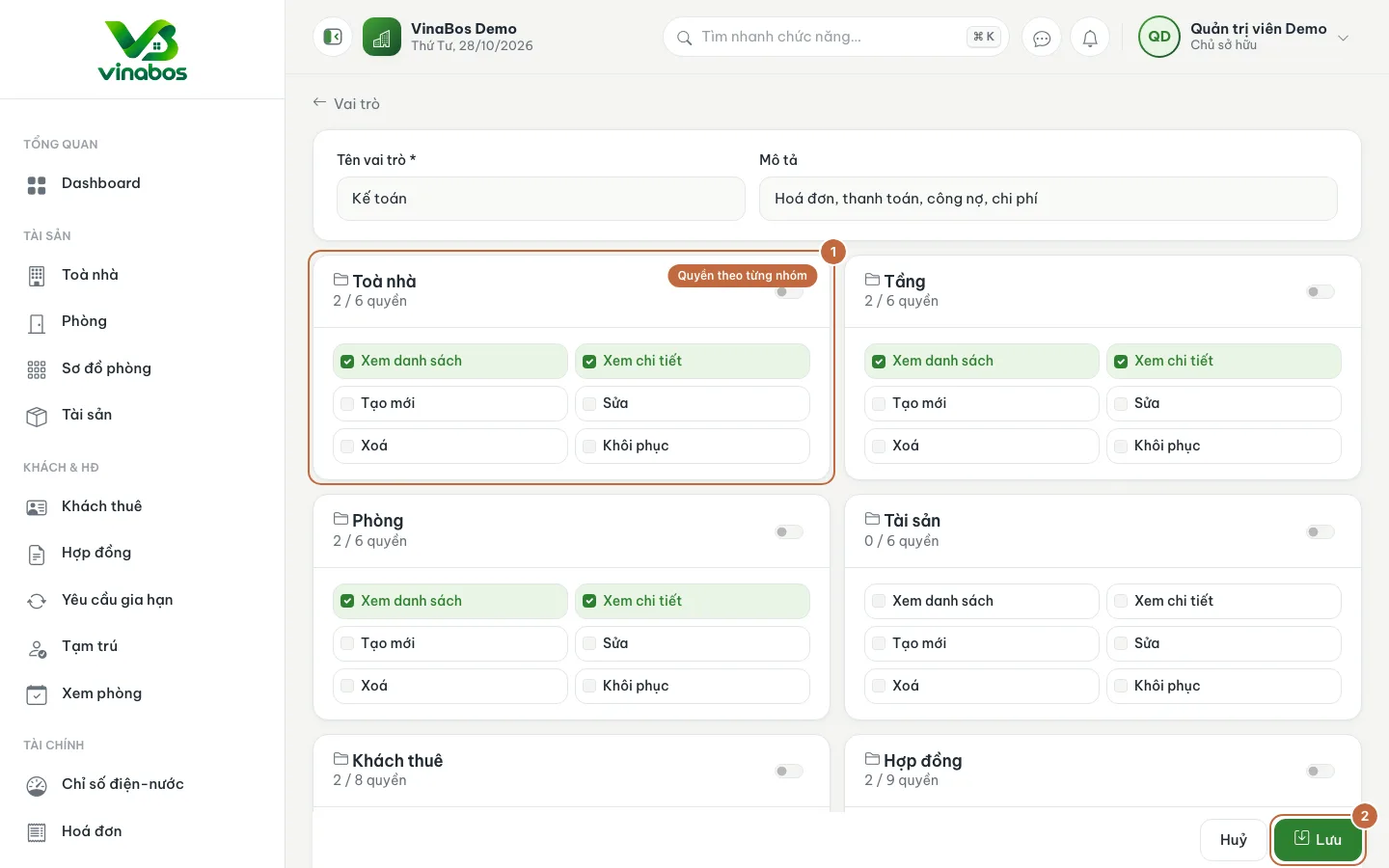
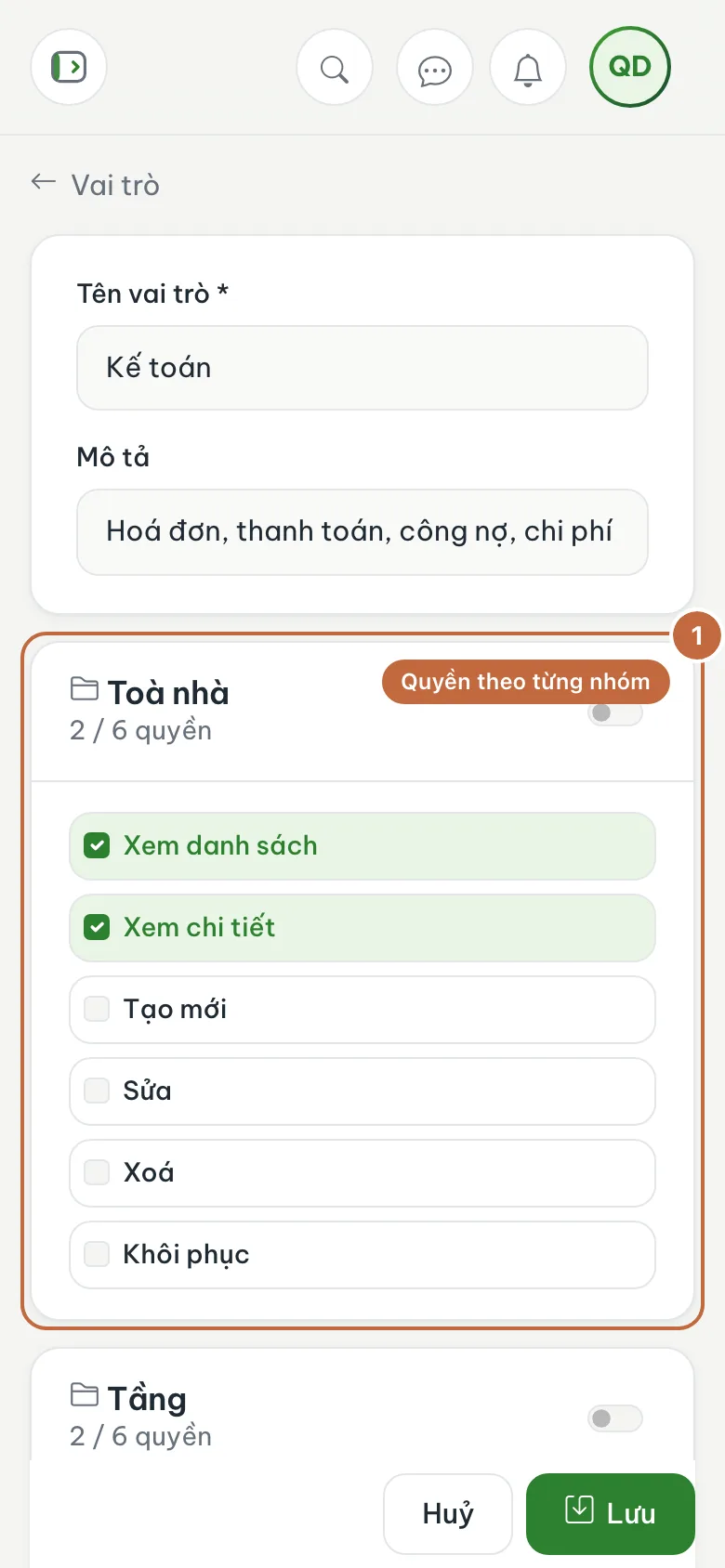
Role editor: permissions by group (①) and the Save button (②) Open the staff list and click Invite staff
In the left menu, under System, click Staff. On the list page, click Invite staff (①).
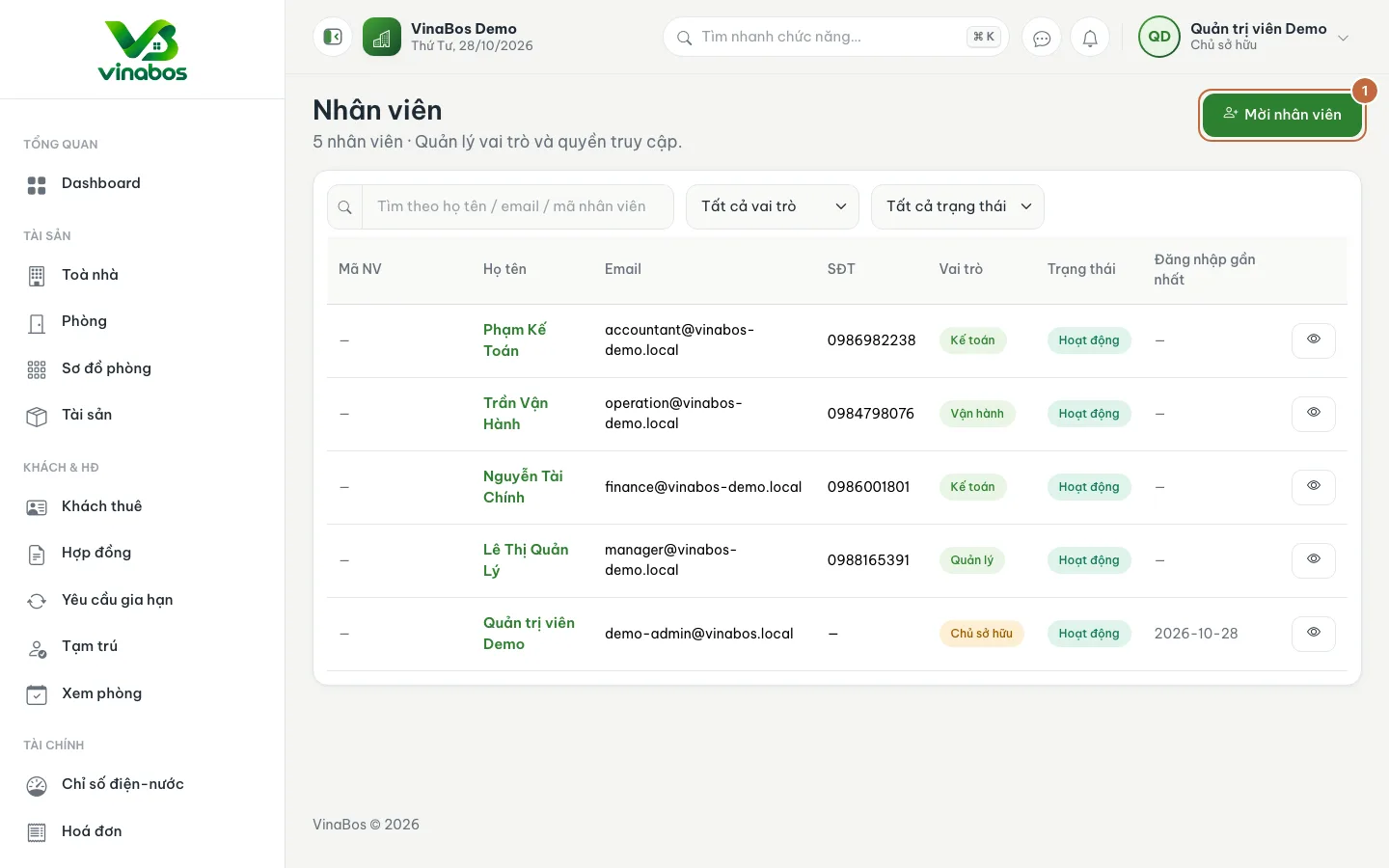
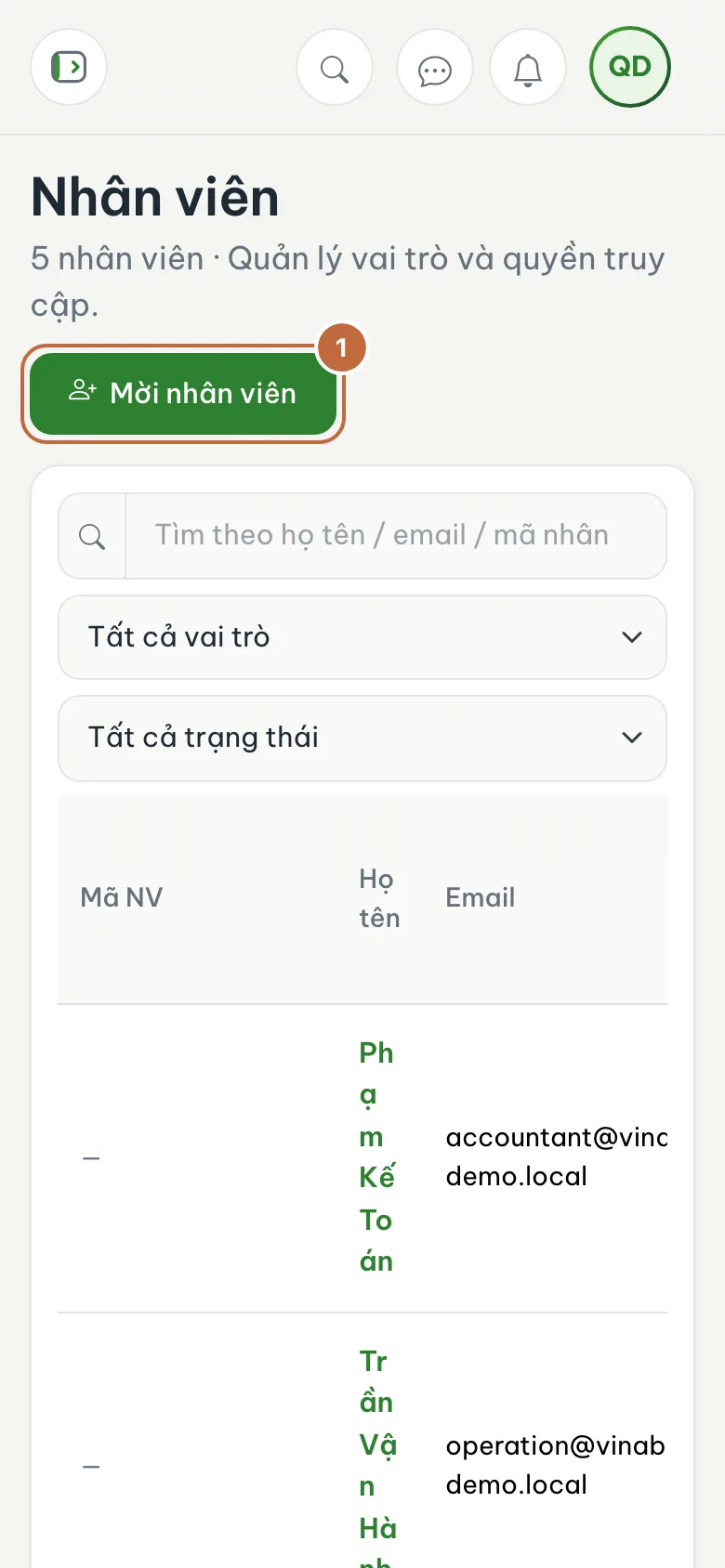
Staff list with the Invite staff button (①) Fill in the staff member's details
Fill in Email (①) and Full name, both required, plus Phone number and Staff code if you like (the code is generated when left empty). In the Role & permissions block, pick the right role.
Set an initial password
In the Initial password block you have two options: leave it empty and the system emails the staff member so they can set their own password, or type a password to hand over in person. Click Create (②). If you typed a password or the system generated a temporary one, a Staff temporary password dialog appears; copy it and send it to them right away.
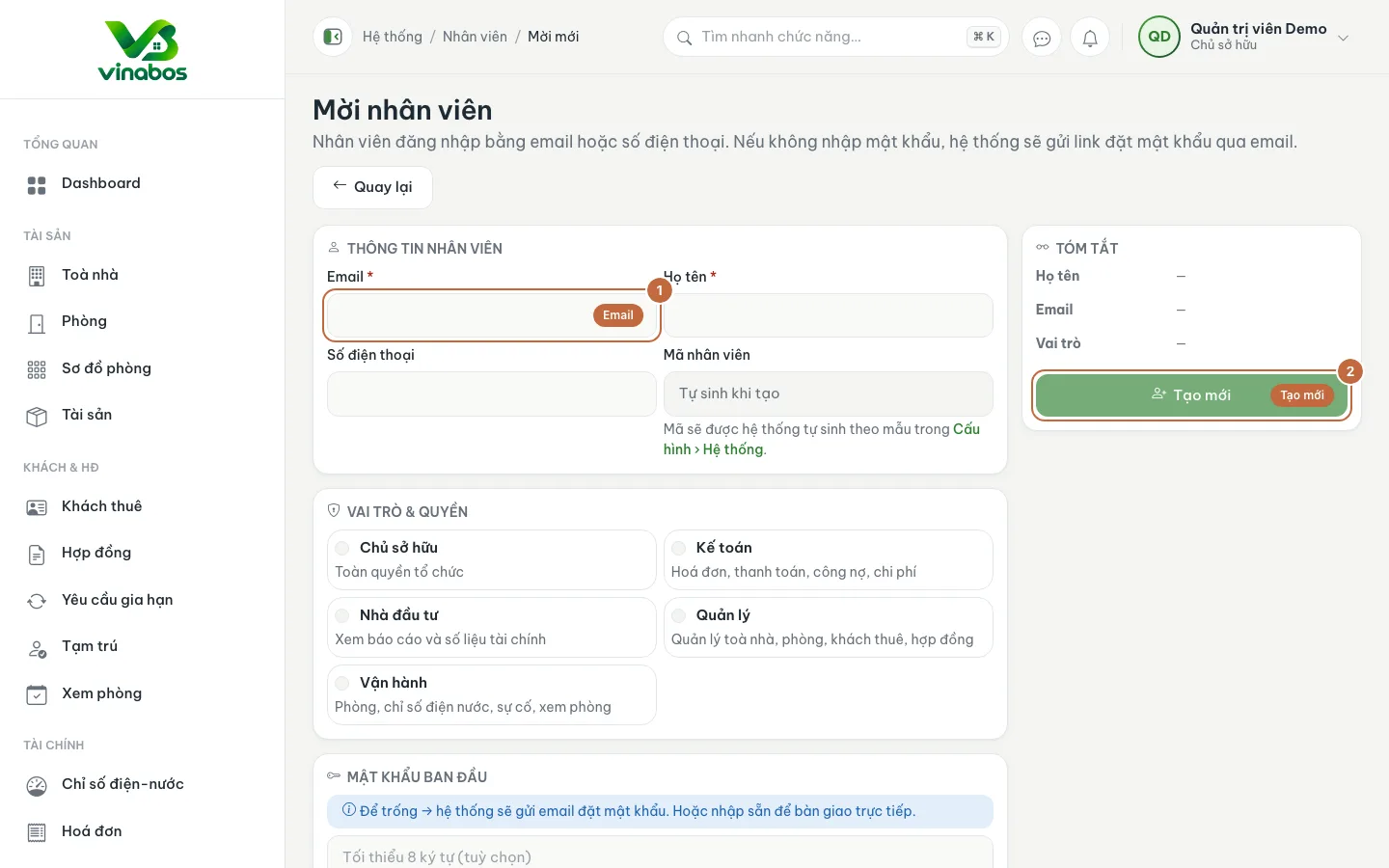
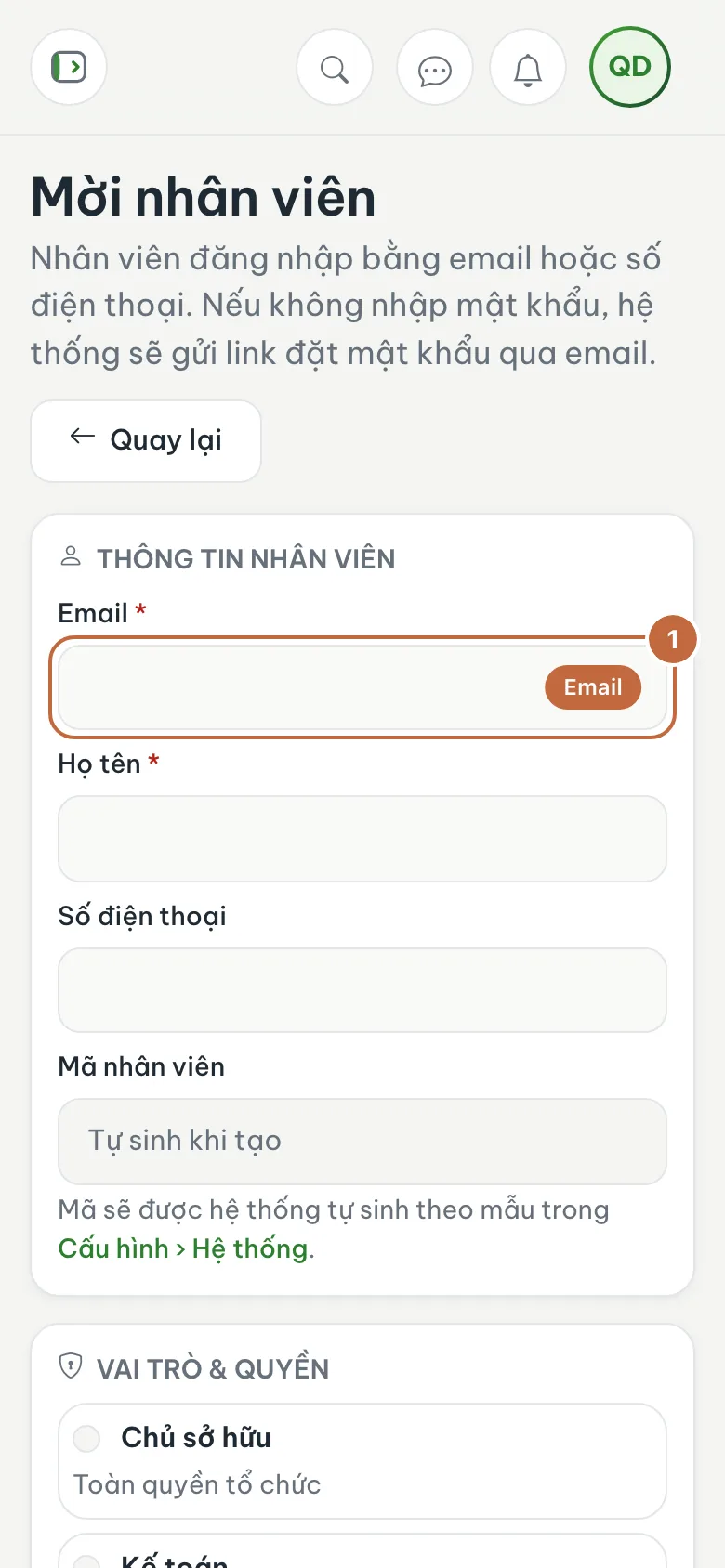
Invite staff form: the Email field (①) and the Create button (②) Remind staff to change their password
Staff sign in with their email or phone number and the password you sent. Ask them to follow First sign-in and changing your password.
Name roles after the job (Accountant, Operations) rather than a person. When someone leaves or changes jobs, you only need to change their role.
Grant delete permissions and money-approval permissions (invoices, expenses) only to people you truly trust. A temporary password is shown only once, so send it through a private channel.
On mobile
You can invite staff and edit roles in a phone browser, but the permission list is long and easier to read on a computer. Staff can use the VinaBos app on their phone for daily work with the same account.
FAQ
I see no roles in the list when inviting staff
Your organization has no roles yet. Go to Settings › Roles, create a role first, then come back to invite staff.
Can I change a staff member's role later?
Yes. Open the staff profile in the Staff list and pick a different role.
What if a staff member leaves?
Open their profile and suspend their account so they can no longer sign in. The list has a "Suspended" filter so you can review them. An organization must always keep at least one active owner.
Next step
You have finished the getting-started steps. Browse more guides in the Help Center.
Was this article helpful?
Thanks for your feedback!