Once a tenant has an account, they can check invoices and contracts, message you and report problems from their phone, so you spend less time chasing payments or answering calls. Creating an account takes about 2 minutes per tenant, and tenants use the VinaBos app on iOS or Android.
Before you start
- Your organization's plan includes the tenant app feature. If you do not see the "App account" block on a tenant profile, contact VinaBos to upgrade your plan.
- Your role needs the update tenants permission.
- The tenant profile must have an email or phone number, because tenants use them to sign in. Fill them in under Contact when you create the tenant.
- The tenant side currently runs in the mobile app (iOS, Android). The tenant web portal is still in development, so ask tenants to use their phone.
Steps
Check the tenant's email or phone number
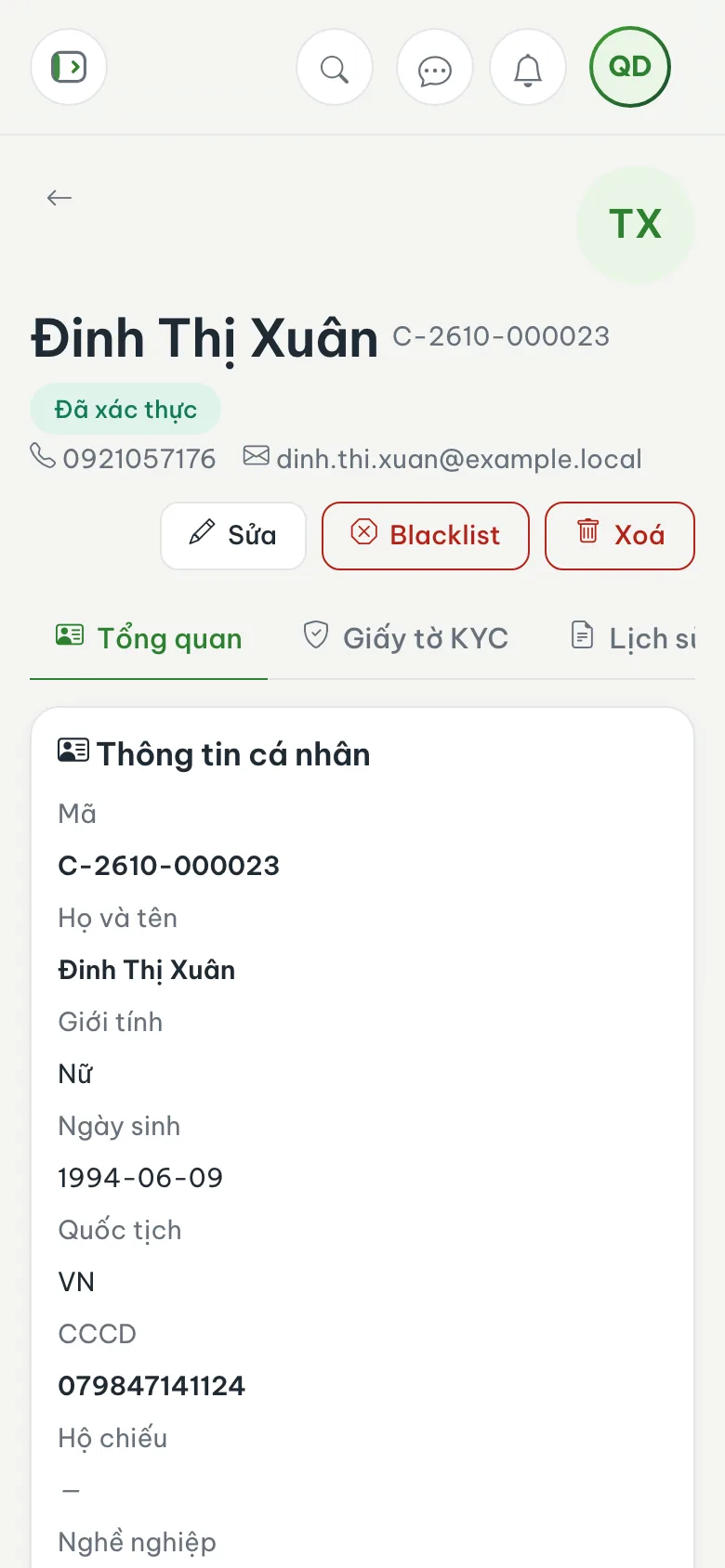
Go to Tenants & contracts › Tenants and open the tenant profile. If Phone number or Email is empty, edit the profile and fill it in first. For a new tenant, both fields are in the Contact block of the create form.
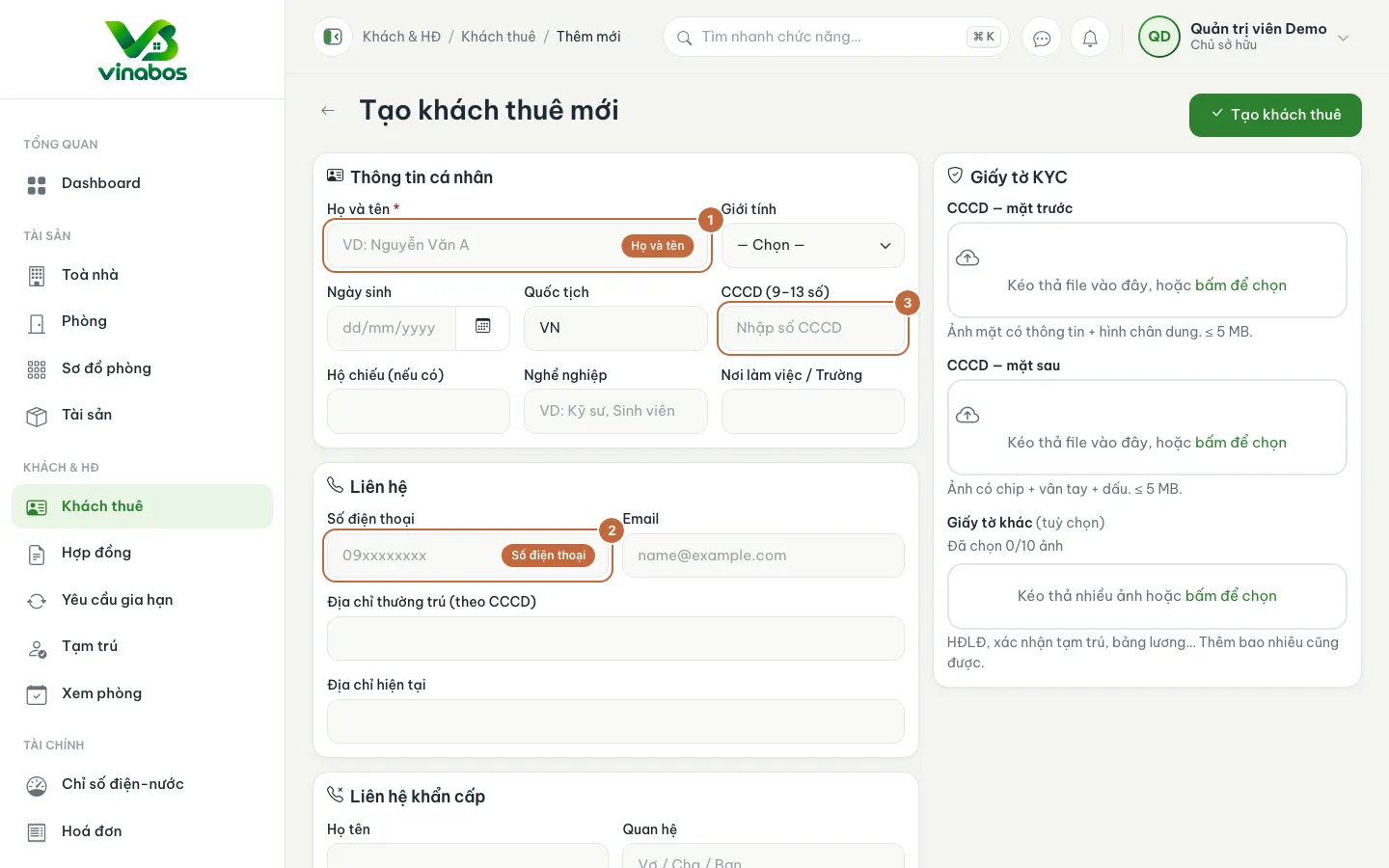
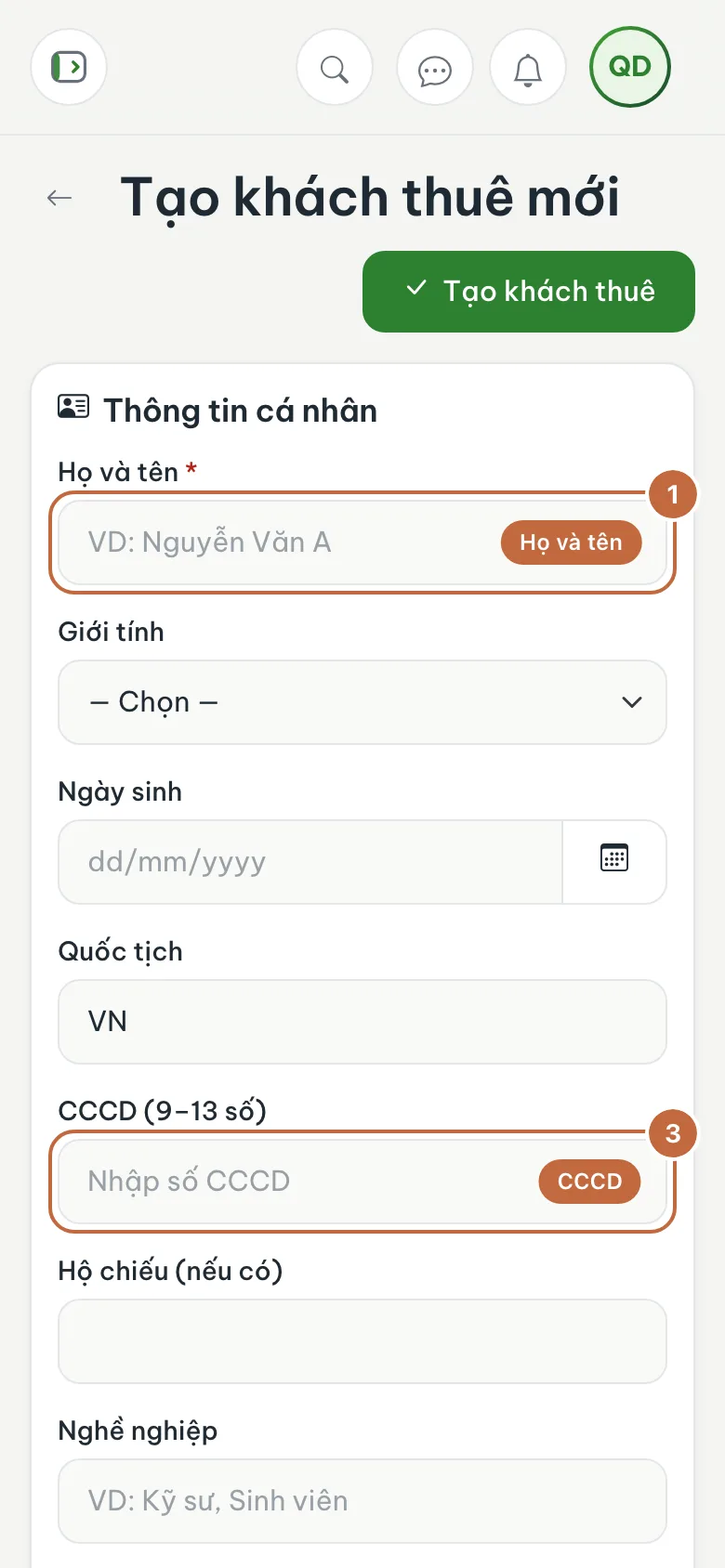
Tenant form: make sure to fill in Phone number (②) and Email so the tenant can sign in Click Create account
On the right side of the profile there is an App account block showing "None yet". Click Create account (①), then confirm in the dialog.
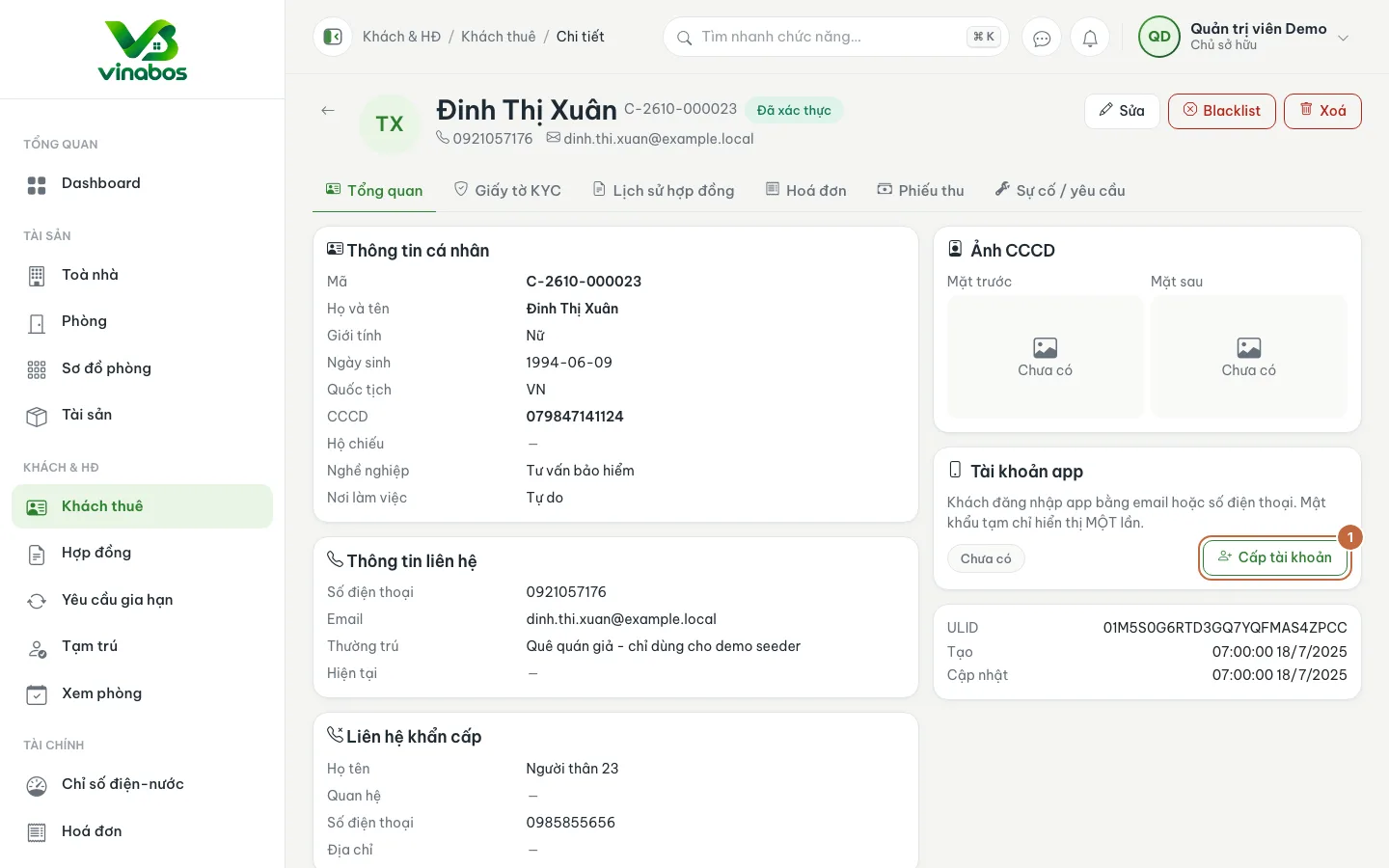
Tenant profile: the App account block with the Create account button (①) Copy the temporary password and send it to the tenant
VinaBos shows a Password created dialog with a temporary password. Click the copy icon, send it to the tenant in a private message or tell them in person, then click Saved, close. The password is only shown once.
If the tenant already has a VinaBos account, the system just links the profile to that account and says "the tenant uses their current password". In that case there is no new password to send.
Help the tenant sign in on their phone
Ask the tenant to install the VinaBos app on iOS or Android, open the sign-in screen, enter their Email or phone number (exactly as in the profile) and the temporary password, then tap Sign in. Encourage them to change the password right away under Account.
What tenants can do in the app
After signing in, tenants see a navigation bar with Home, Payments, Requests, Messages and Account. Home shows their room, Current balance and Current contract. Payments lists unpaid invoices and your bank transfer details (bank, account number, account holder). Requests lets tenants report a problem or send a request; you receive and handle it under Issues / requests on the web.
The bank details tenants see come from Settings › Landlord. Fill them in completely before inviting tenants to the app.
The Reset password button (shown once a tenant has an account) creates a new temporary password, invalidates the old one and signs the tenant out of every device. Use it only when the tenant really forgot their password, and never send a temporary password where strangers can read it.
On mobile
This section describes the tenant's own phone experience. On your side, you can also create accounts from a phone browser: open the tenant profile, scroll to the App account block and follow the same steps. Afterwards, send the tenant short sign-in instructions, with their email or phone number as the username.
FAQ
I cannot see the App account block
There are two common causes: your plan does not include the tenant app feature, or your role lacks the permission to update tenants. Ask the owner or VinaBos to check.
What if a tenant forgets their password?
Open the tenant profile again and click Reset password to create a new temporary password. If the tenant's account is also used elsewhere (for example they rent from another landlord too), the system may not allow a reset; in that case the tenant uses Forgot password? on the sign-in screen.
Can a tenant see other tenants' invoices?
No. Each tenant only sees their own contract, invoices and room information.
Next step
One last step: invite your colleagues to help manage. Invite staff and set permissions →
Was this article helpful?
Thanks for your feedback!