Each period, VinaBos combines rent, utilities and extra charges into one invoice per contract. You generate the period's invoices, review them, issue them, send them to tenants and record payments as they come in. The whole routine for one period takes about 10 minutes.
Before you start
- You have active contracts and have recorded the period's meter readings (see Record electricity and water readings).
- Your role needs the matching permissions: create invoices, approve/issue invoices, export/send invoices and record payments. The owner has all of them.
- Ideally you have added your bank account under Settings › Landlord, so tenants know where to send money.
Steps
Open Invoices and generate invoices for a period
In the left menu, under Finance, click Invoices. Click Generate invoices for a period (①). In the dialog, choose the Period (the month to bill) and a Building, or leave it empty to bill everything, then click Create. The system creates draft invoices for every active contract; contracts that already have a draft for that period are skipped.
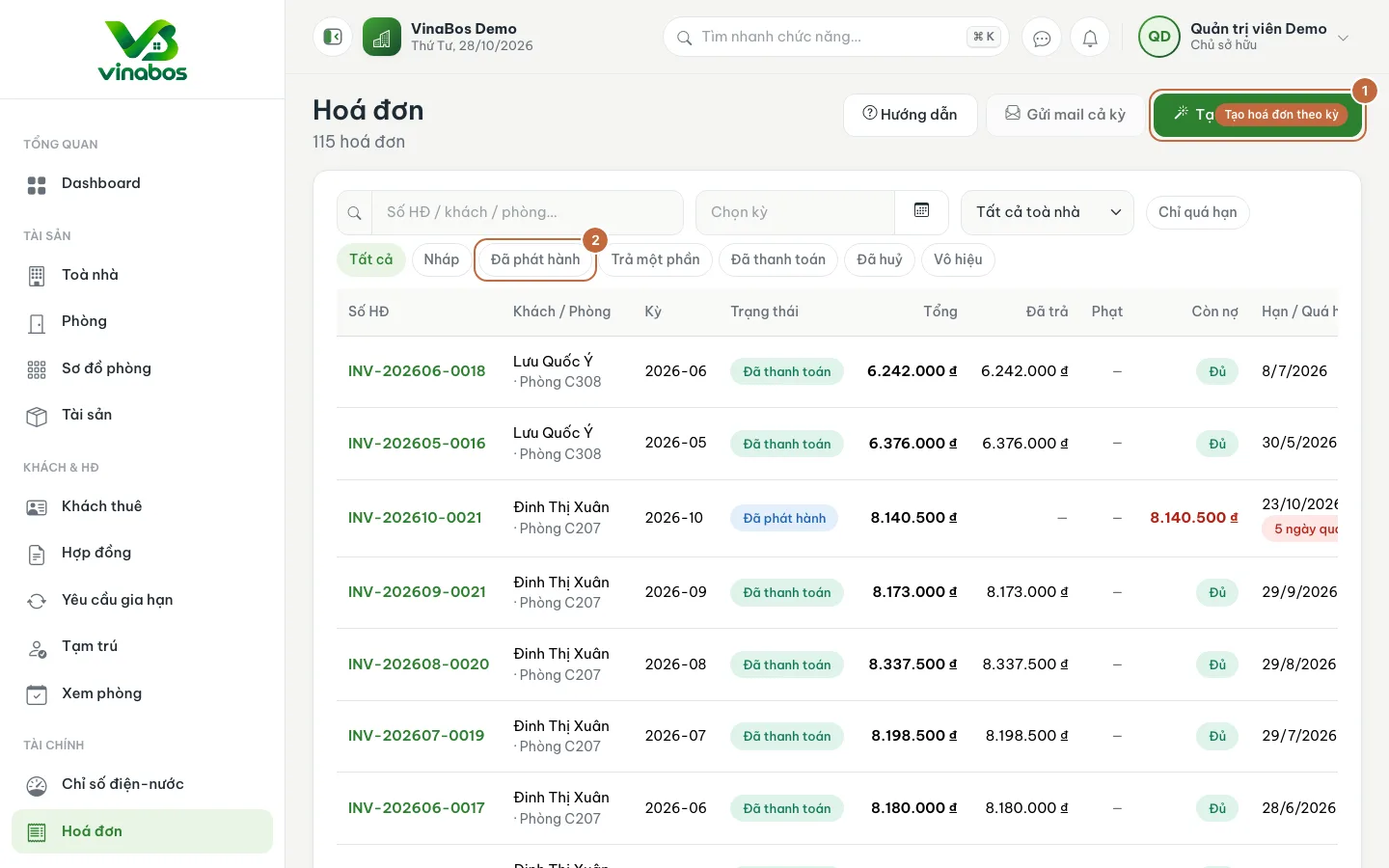
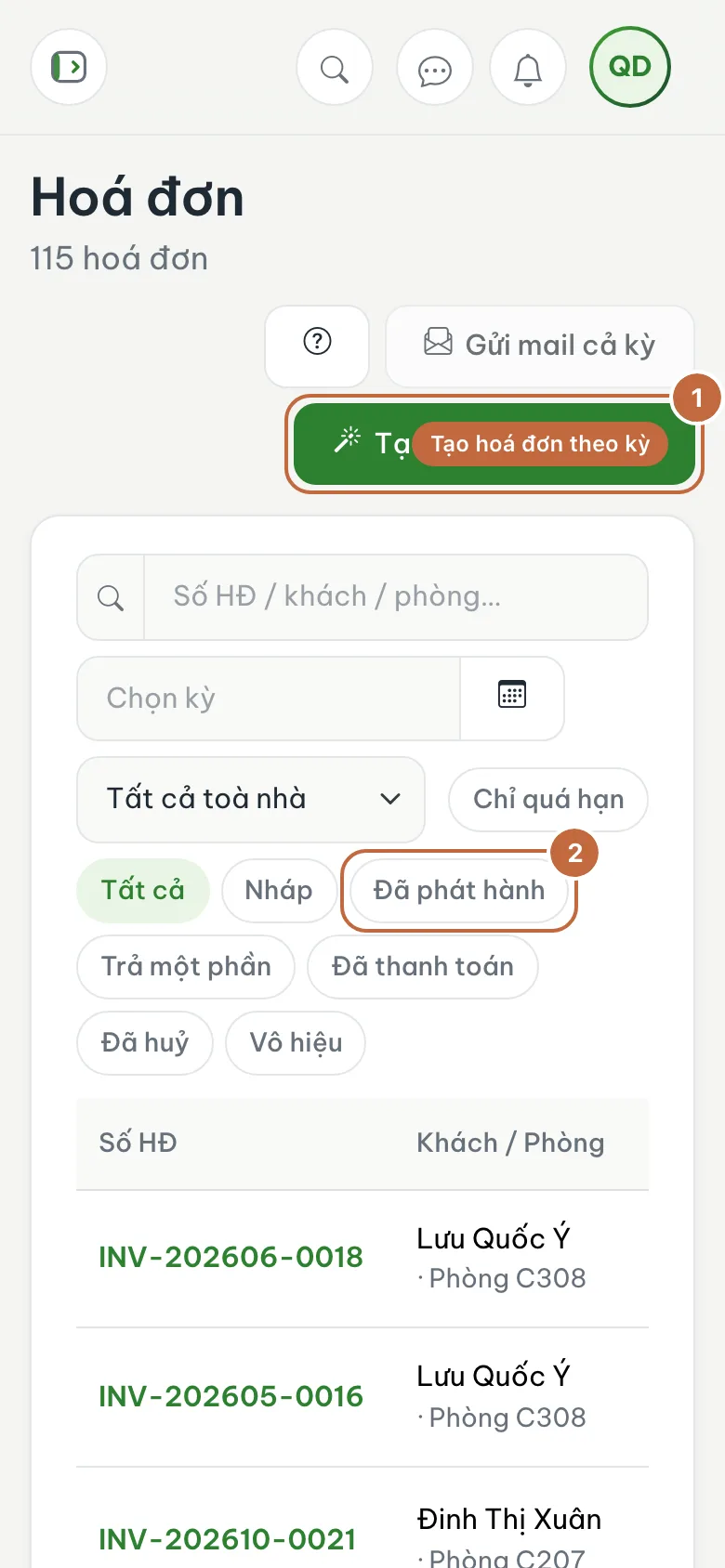
Invoices list: the Generate invoices for a period button (①) and the status filter (②) Review the draft invoices
Use the status filter (②) to pick Draft, then open each invoice. Check rent, electricity, water and services in the table, plus the Summary block on the right. A draft can still be removed with Delete draft if you created it by mistake.
Issue the invoice
Click Issue, check the Issue date and Due date (leave empty for the defaults), then click Issue again. The invoice moves to the "Issued" status.
Send the invoice to the tenant
On the invoice page click Send email (①), confirm the Email to send the invoice to and send. The tenant receives the invoice with a PDF attached. If the tenant has no email on file, you can type one here. To send a whole period at once, use Email whole period on the list page.
Record the payment
When the tenant has paid by transfer or cash, open the invoice and click Record payment (②). Fill in the Amount, choose the Method (cash, bank transfer, e-wallet...), add a reference code if any, then click Record. A partial payment moves the invoice to "Partially paid"; a full payment makes it "Paid".
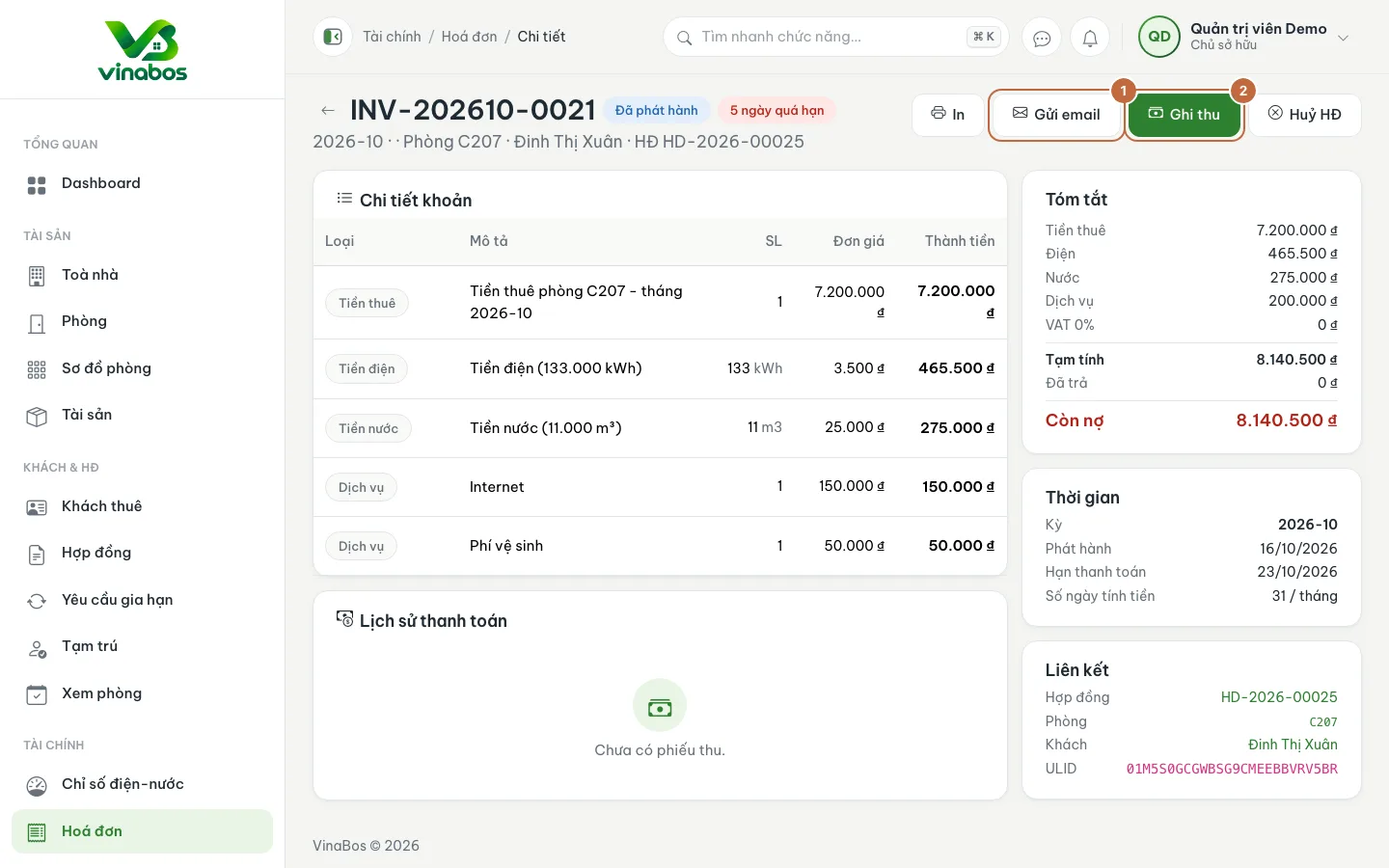
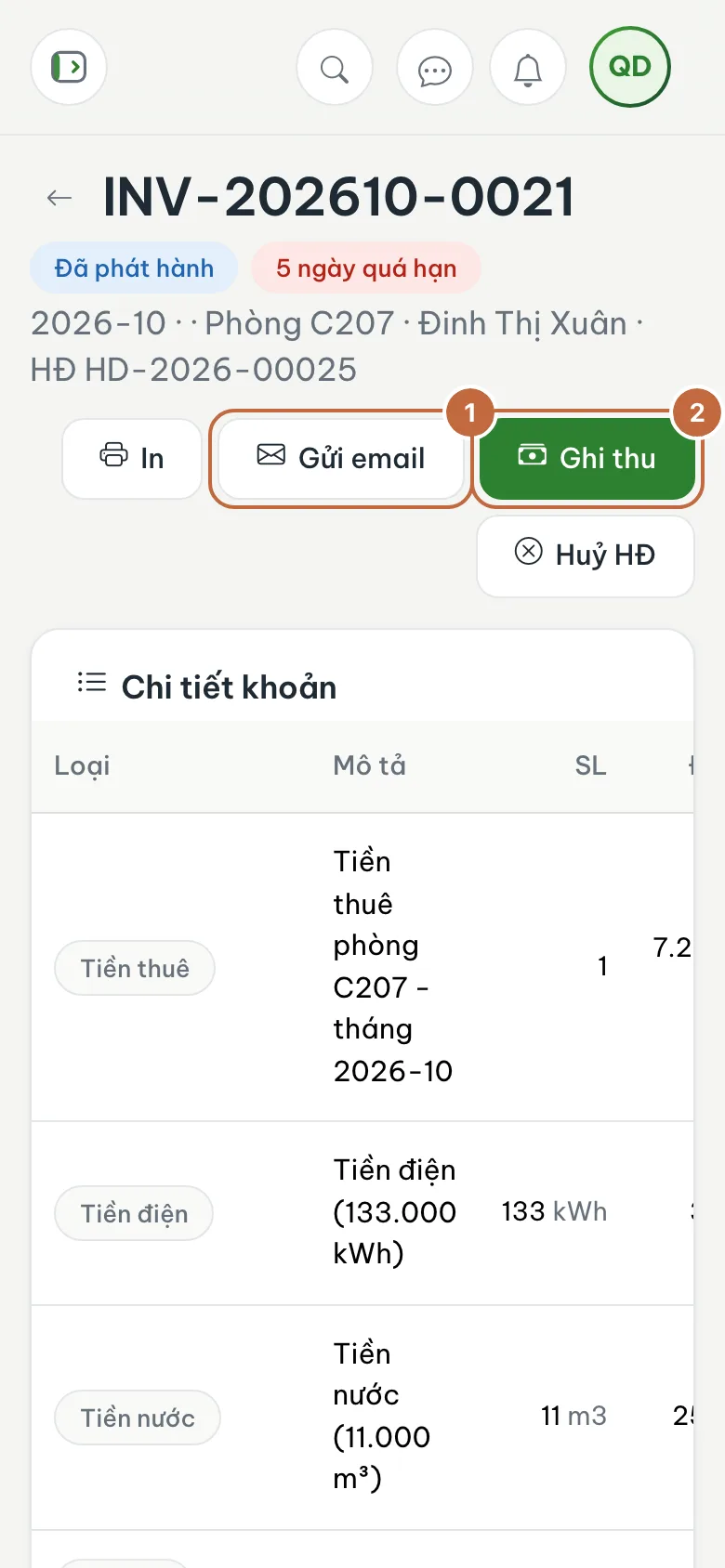
Invoice detail: the Send email (①) and Record payment (②) buttons Review the receipts
Every payment creates a receipt. Click Receipts in the Finance menu to see them all, and filter by payment method.
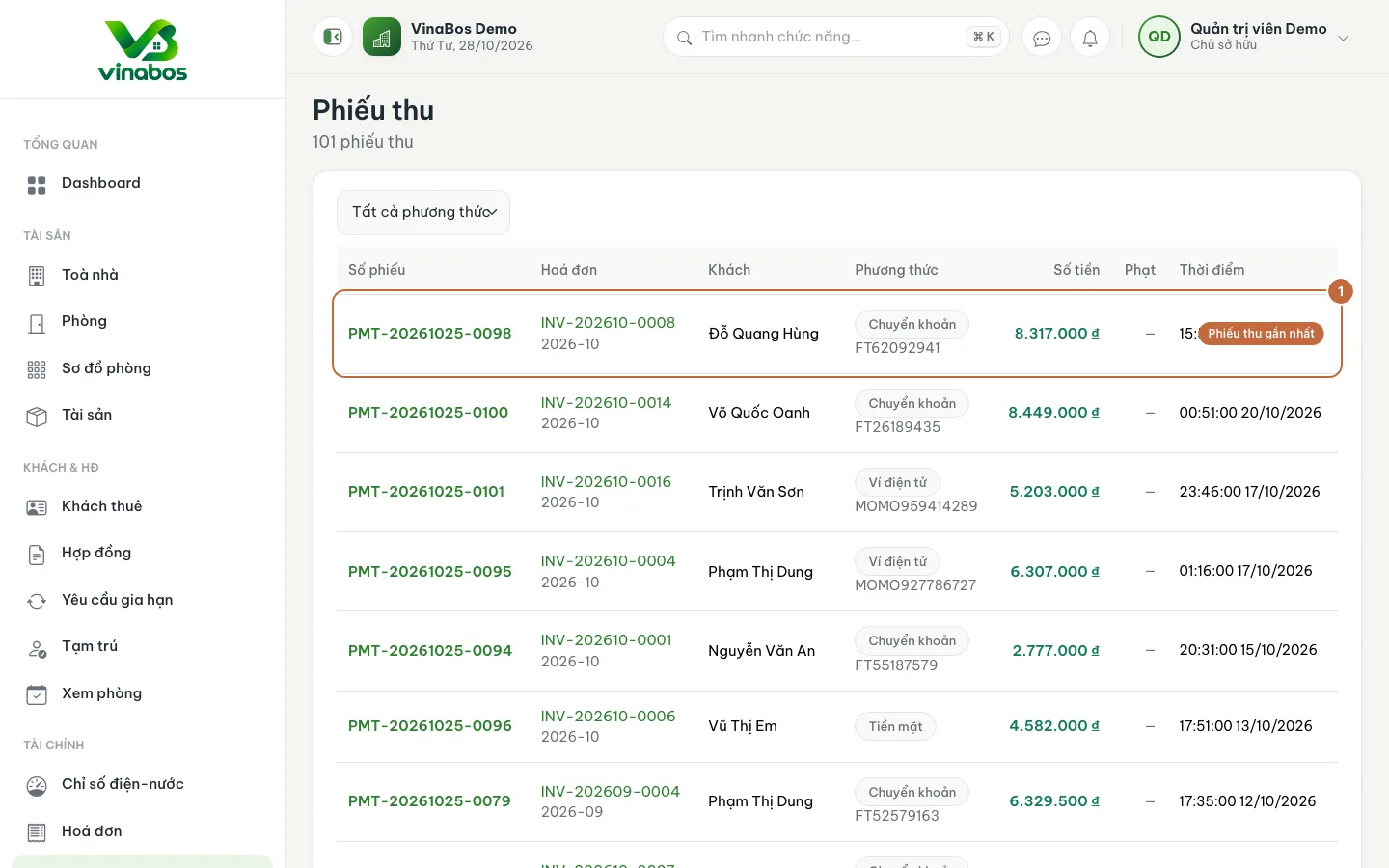
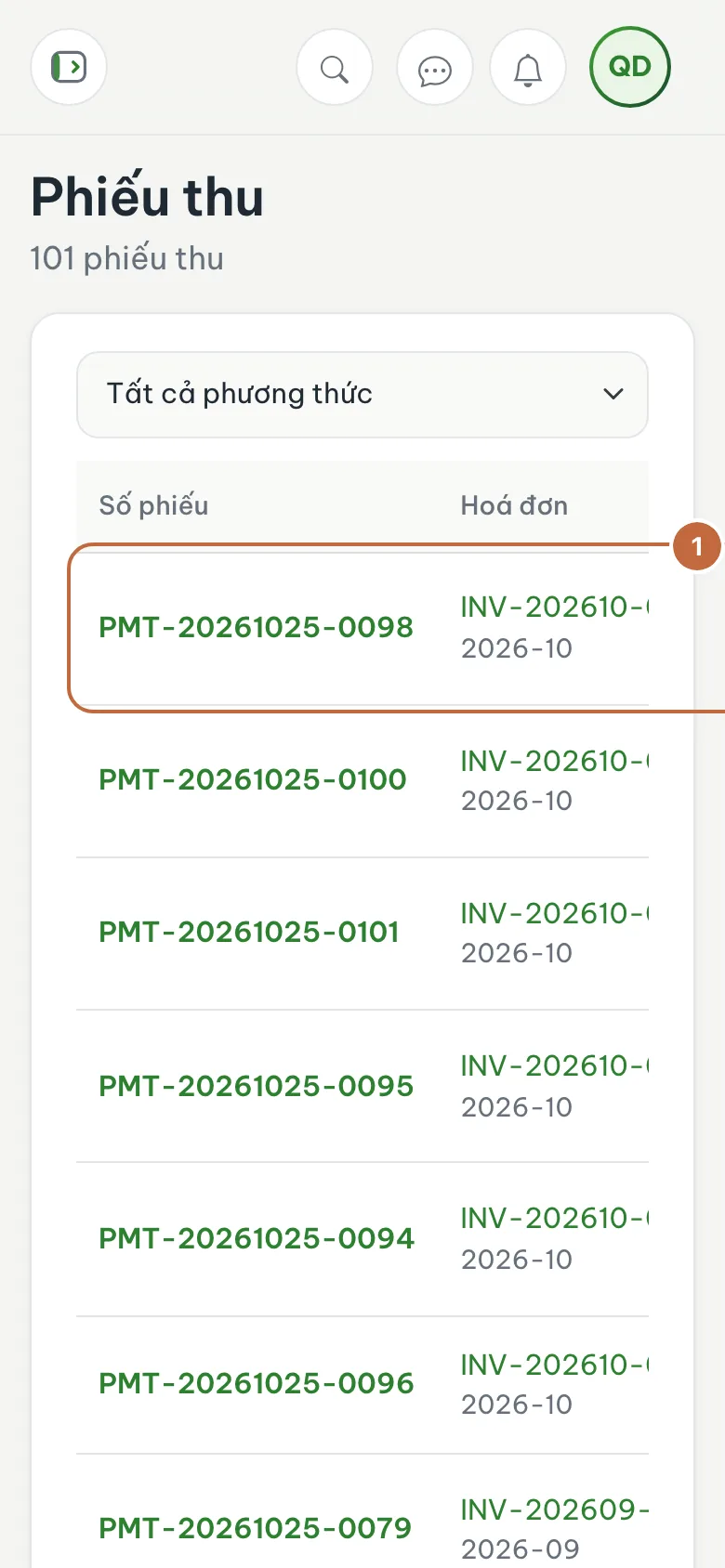
Receipts list: the newest row (①)
Generate invoices on a fixed day each month and email the whole period at once. Tenants get used to it and you do not have to remind them one by one.
Once an invoice is issued you can no longer edit it like a draft; you can only cancel it. Check the amounts carefully at the draft stage before clicking Issue, especially if you have already emailed the tenant.
On mobile
You can view invoices, send emails and record payments from a phone browser, which is handy when collecting cash at the room. Long tables scroll sideways. Generating a whole period is better done on a computer so it is easier to review.
FAQ
Some rooms did not get an invoice
The room's contract may not be activated yet (still a draft), or it already has a draft invoice for that period. Check the contract status and filter invoices by period.
A tenant paid only part of the amount. How do I record it?
Still click Record payment and enter the amount the tenant paid. The invoice becomes "Partially paid" and the remaining balance is shown clearly so you can follow up.
I recorded the wrong amount
In the invoice's payment block, each receipt has a delete button. Delete the wrong receipt and record it again, if your role has that permission.
Next step
If you want tenants to view invoices and message you from their phone: Create app accounts for tenants →
Was this article helpful?
Thanks for your feedback!