
An air conditioner, a TV, a mattress, a water heater: each is an asset with a value and a warranty period. Once recorded in VinaBos, you know which item sits in which room, whether it is in good shape or broken, and when the warranty ends. When a tenant moves out, you can compare quickly and avoid arguments about belongings.
Before you start
- Your plan includes the Assets & equipment feature and your role has permission to create assets.
- The building (and floor and room if you want to assign one) already exists in the system.
- Have the asset code, name, brand, serial number, purchase date, purchase price and a photo ready.
Steps
Open the Assets page
In the menu, under Assets, click Assets. You see a list with status buttons All, In use, Under repair, Lost and Retired, each with a count. Building, category and condition filters sit above.
Click Add asset
Click Add asset (①).
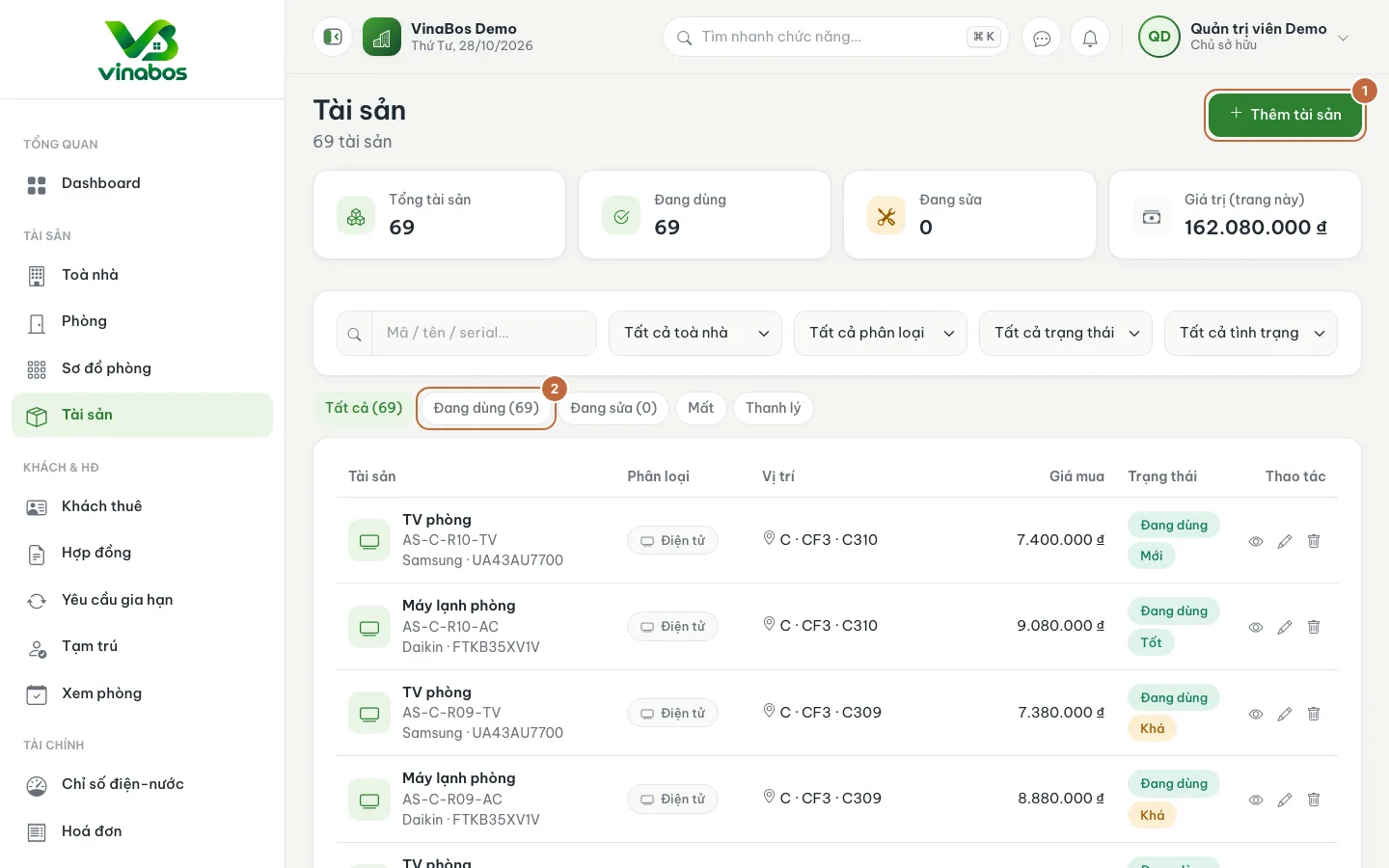
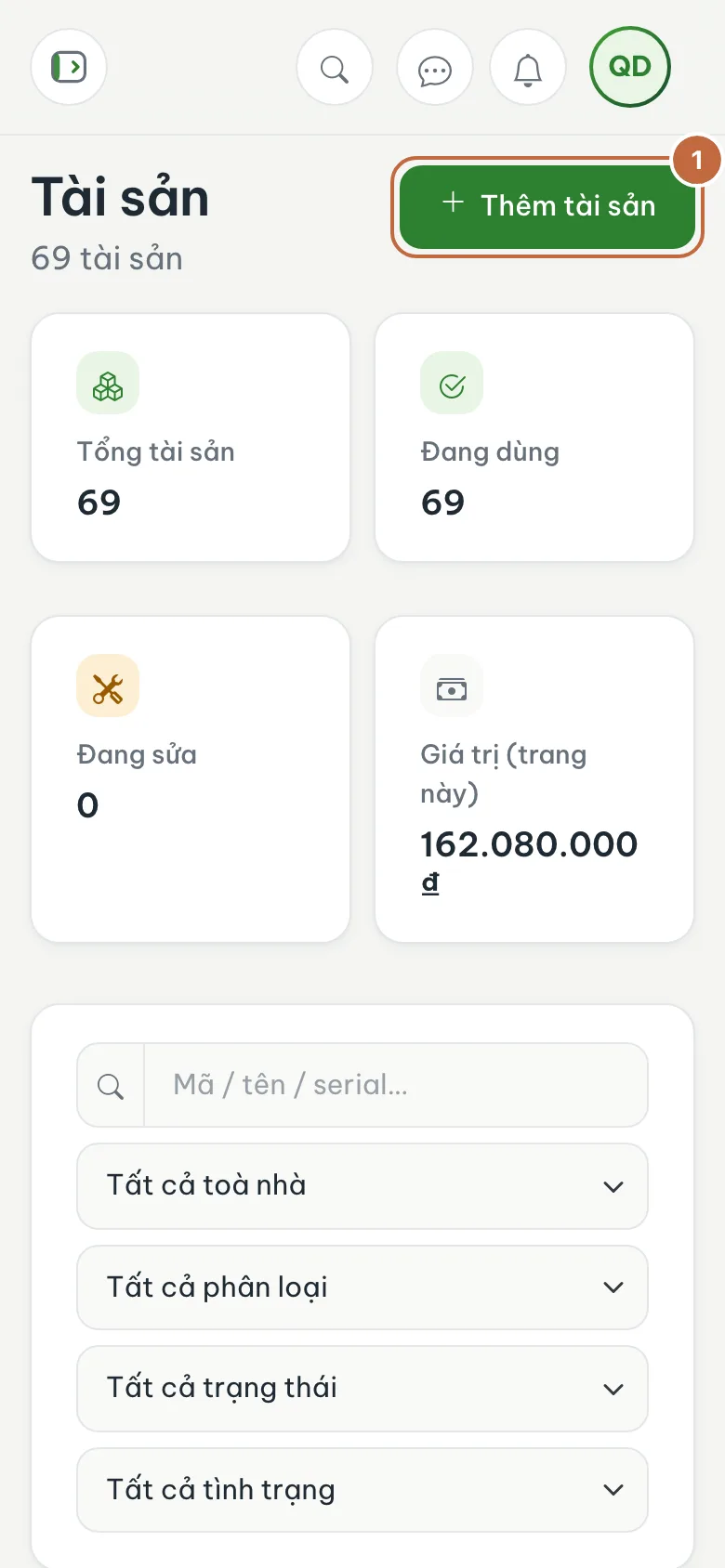
Asset list with the Add asset button (①) and the In use filter (②) Fill in the asset details
Enter the Asset code (for example TV-001) and Asset name. Choose a Category, Condition (new, good, fair, poor, broken) and Status. Fill in Brand, Model, Serial number, Purchase date, Purchase price and Warranty (months) if you have them.
Assign a location
Choose the Building (required). Floor and Room are optional: leave them empty for shared assets such as a water pump or cameras.
Save
Add a photo of the asset if you have one, then click Create asset (③).
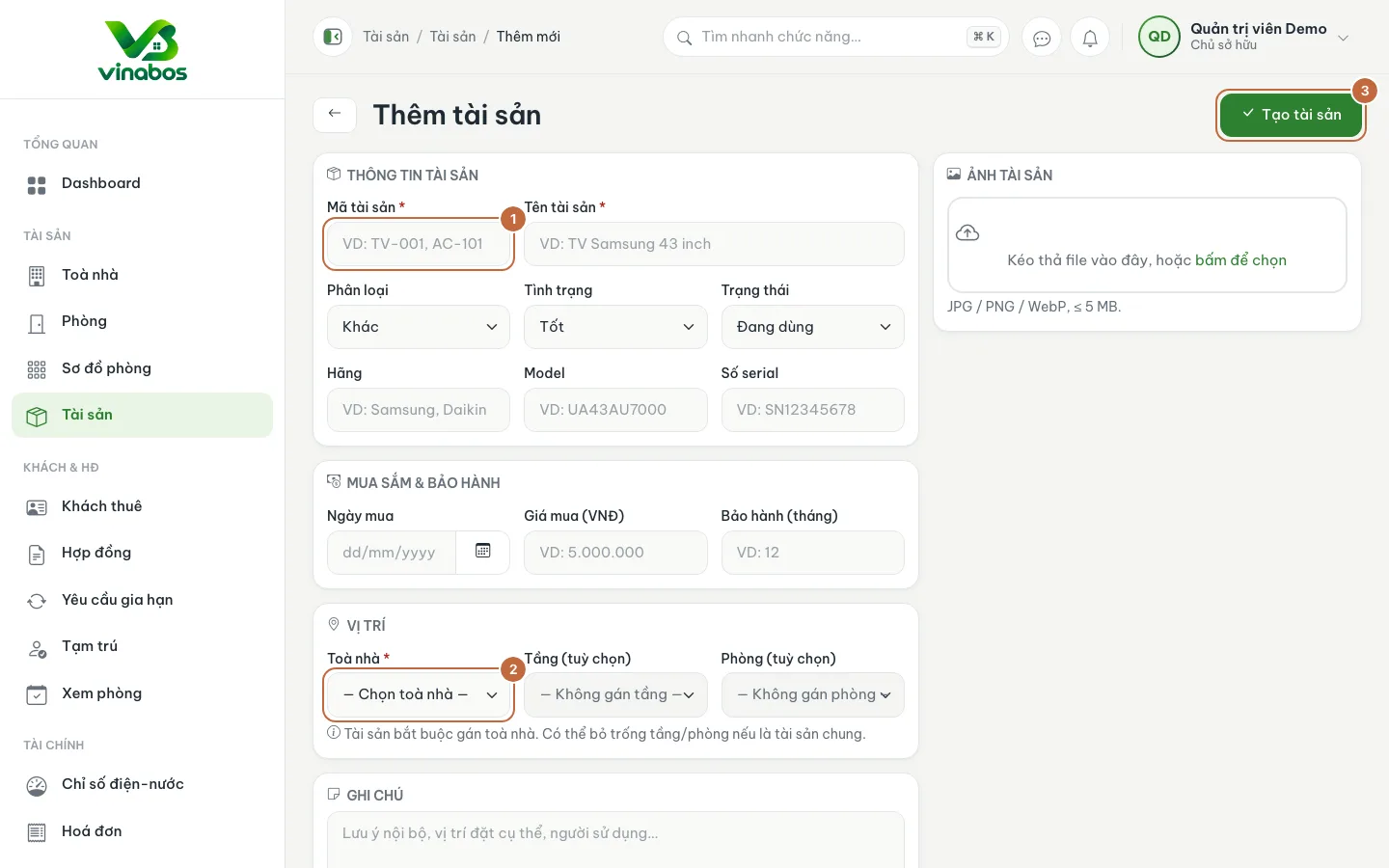
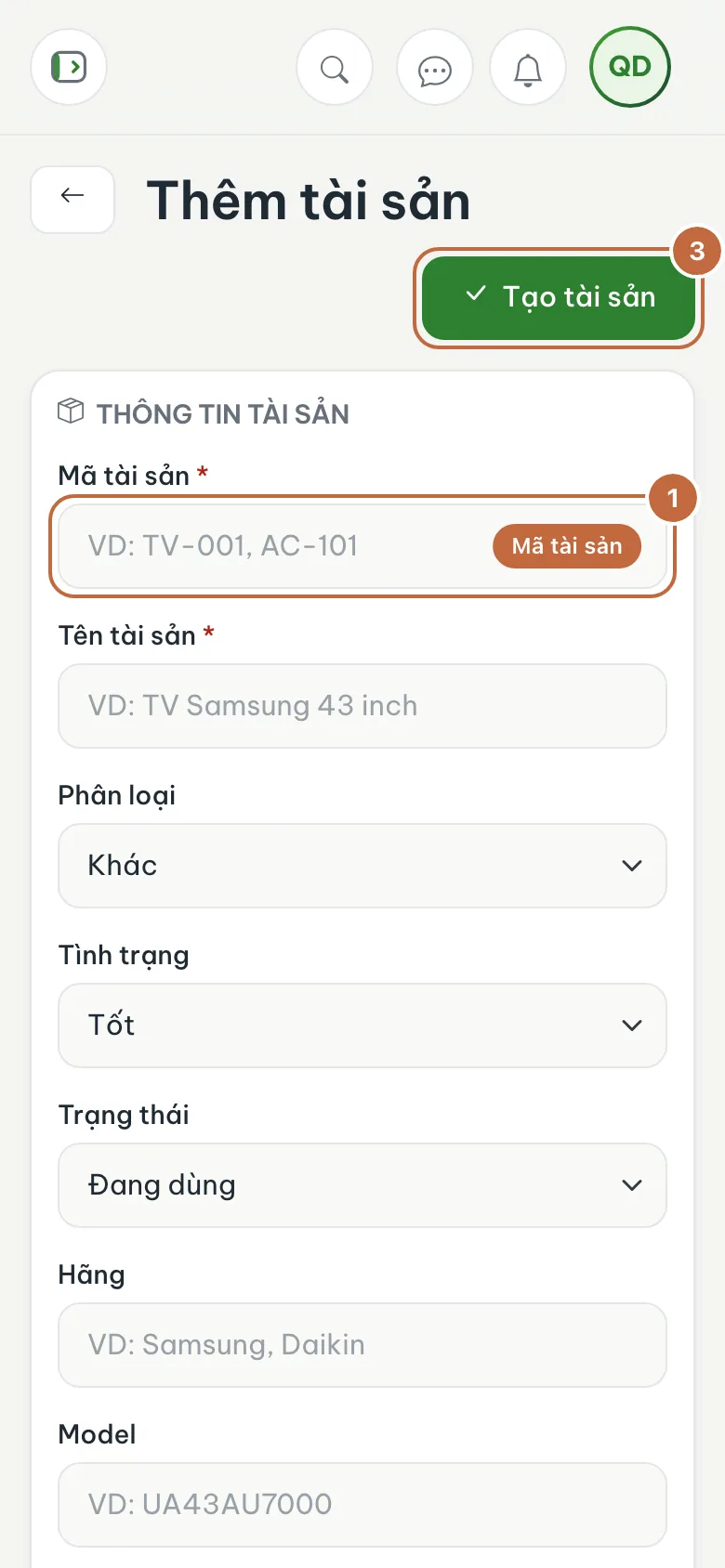
Add asset form: Asset code (①), Building (②) and the Create asset button (③)
Use an easy-to-remember code pattern, such as type plus room number (AC-101 for the air conditioner in room 101). Searching by code in the search box is then very fast.
When an asset breaks, change its Status to Under repair; if you sell or discard it, choose Retired so the history is kept.
FAQ
Can I get a deleted asset back?
The asset detail shows when it was deleted. If you need it back, ask an admin to check; it is better to change the status than to delete.
I cannot pick a Room
You need to choose a Building first before the floor and room lists appear.
Next step
Equipment is broken and needs repairing: Manage vendors and repairers →
Was this article helpful?
Thanks for your feedback!