
A tenant reports a broken water heater, a power cut or a door that needs fixing: each of these is a ticket in VinaBos. A ticket tells you which step the job is at, who owns it and whether the handling deadline has passed, so nothing gets forgotten. Tenants using the app can also send requests themselves, and they appear straight in this list.
Before you start
- Your organization's plan includes the Issues & repair requests feature.
- Your role can view and create tickets. To click Resolved you also need the handle-tickets permission.
- It helps to have your list of regular tradespeople or vendors; see Manage vendors and repairers.
Steps
Open the Issues / requests page
In the left menu, under the Operations group, click Issues / requests. You see the ticket number, title, location, priority, owner and SLA deadline. Use the Search box and the Status, Priority, Category and Building filters to narrow the list.
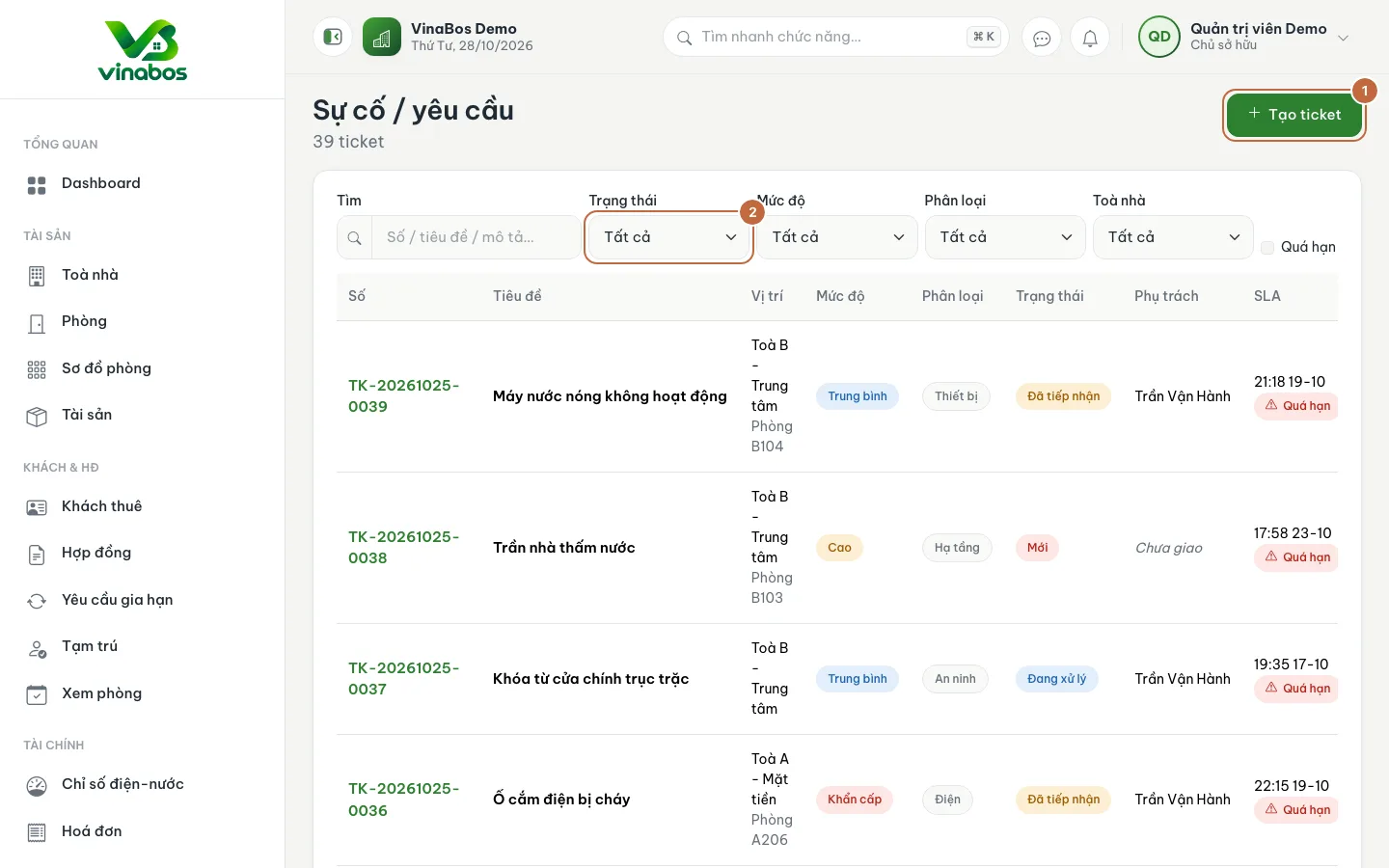
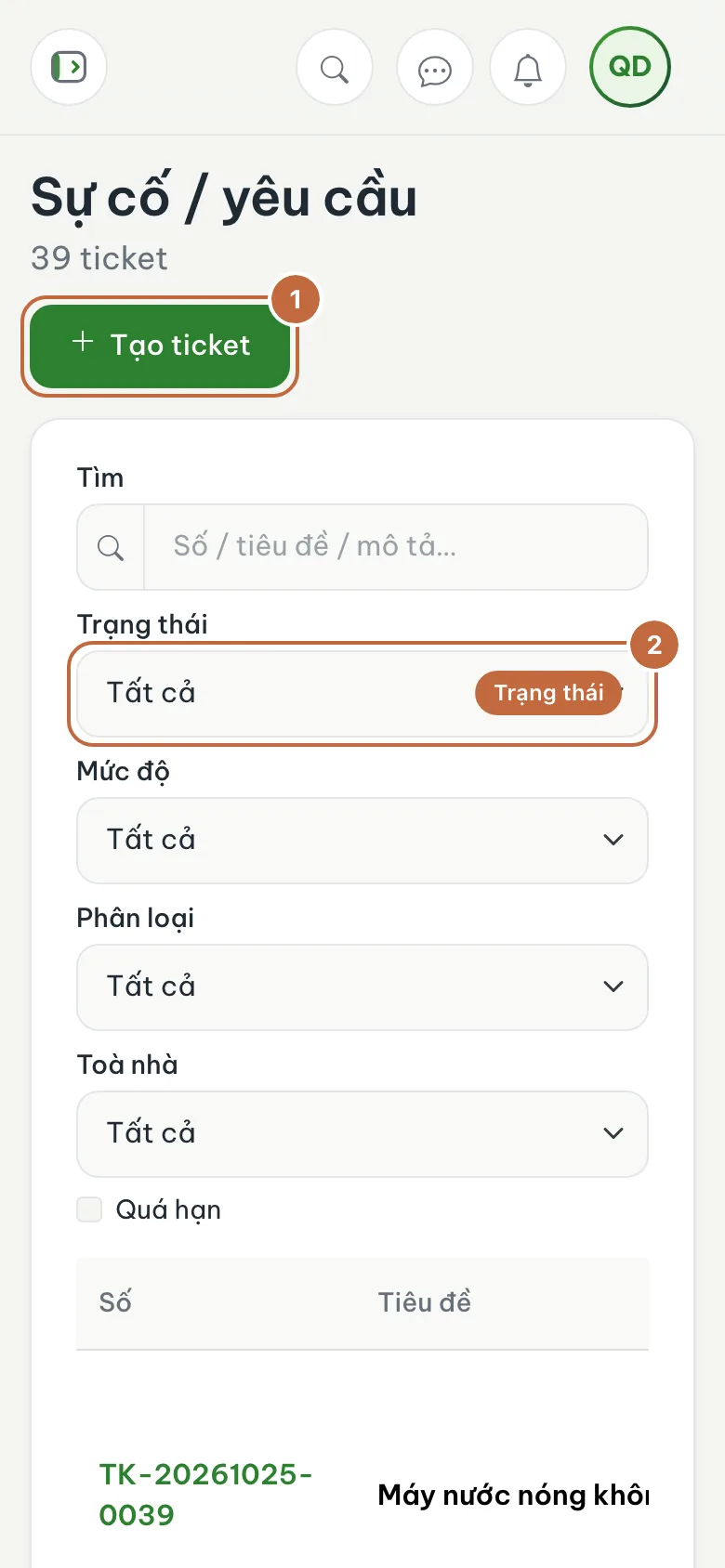
Issue list with the Create ticket button (①) and the status filter (②) Create a new ticket
Click Create ticket. Fill in the Title, choose a Category (electrical, plumbing, equipment...), write the Description, and choose the Building and Room. Choose a Priority: urgent is handled within 4 hours, high within 24 hours, and medium and low have longer deadlines. Finally click Create ticket.
Acknowledge and assign an owner
Open the new ticket and click Acknowledge to say you have received it. Click Assign (or Change if someone is already assigned) to choose the staff member in charge.
Start the work
When the owner begins, click Start. If you have to wait for parts, click Put on hold, then Resume when work continues.
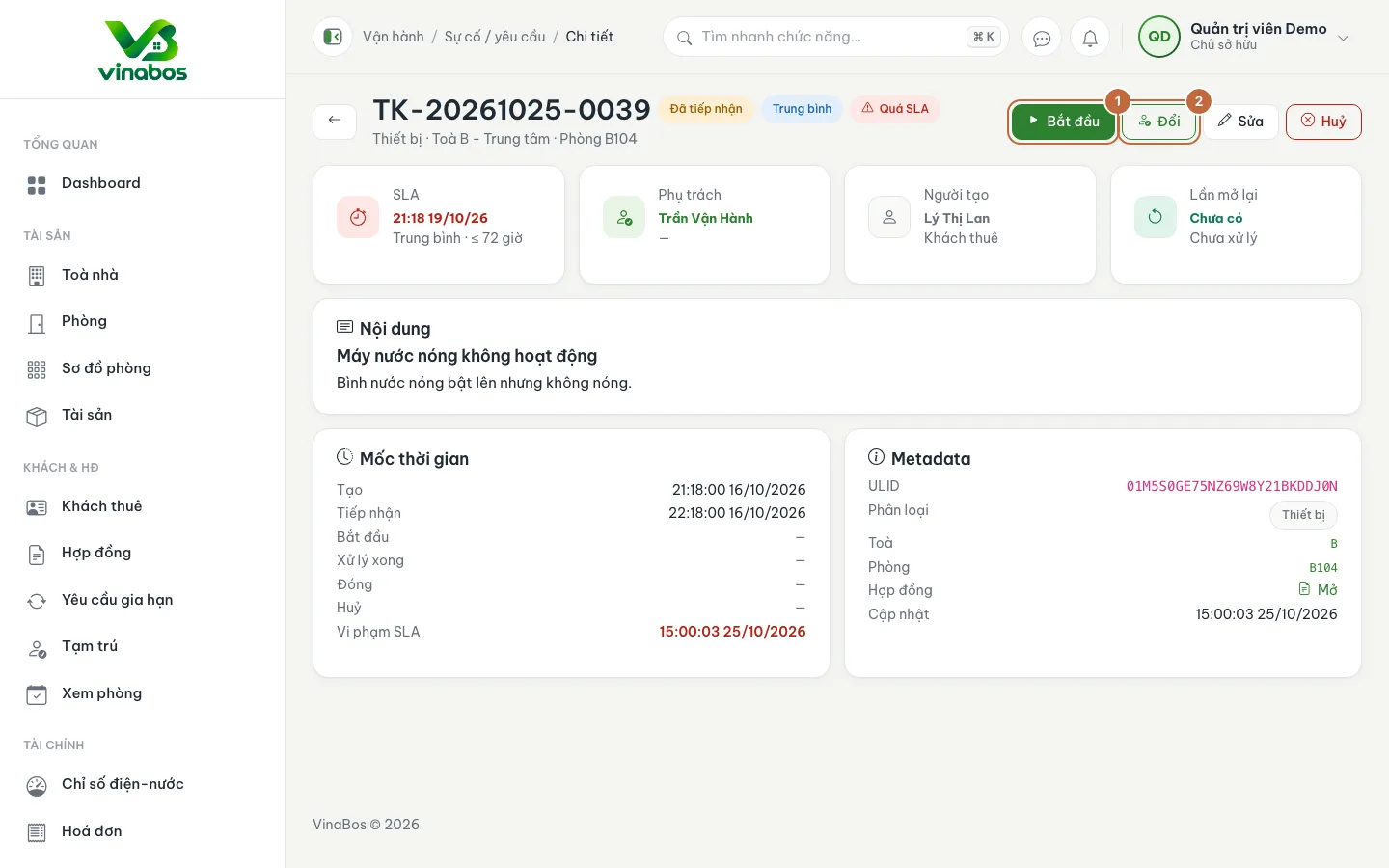
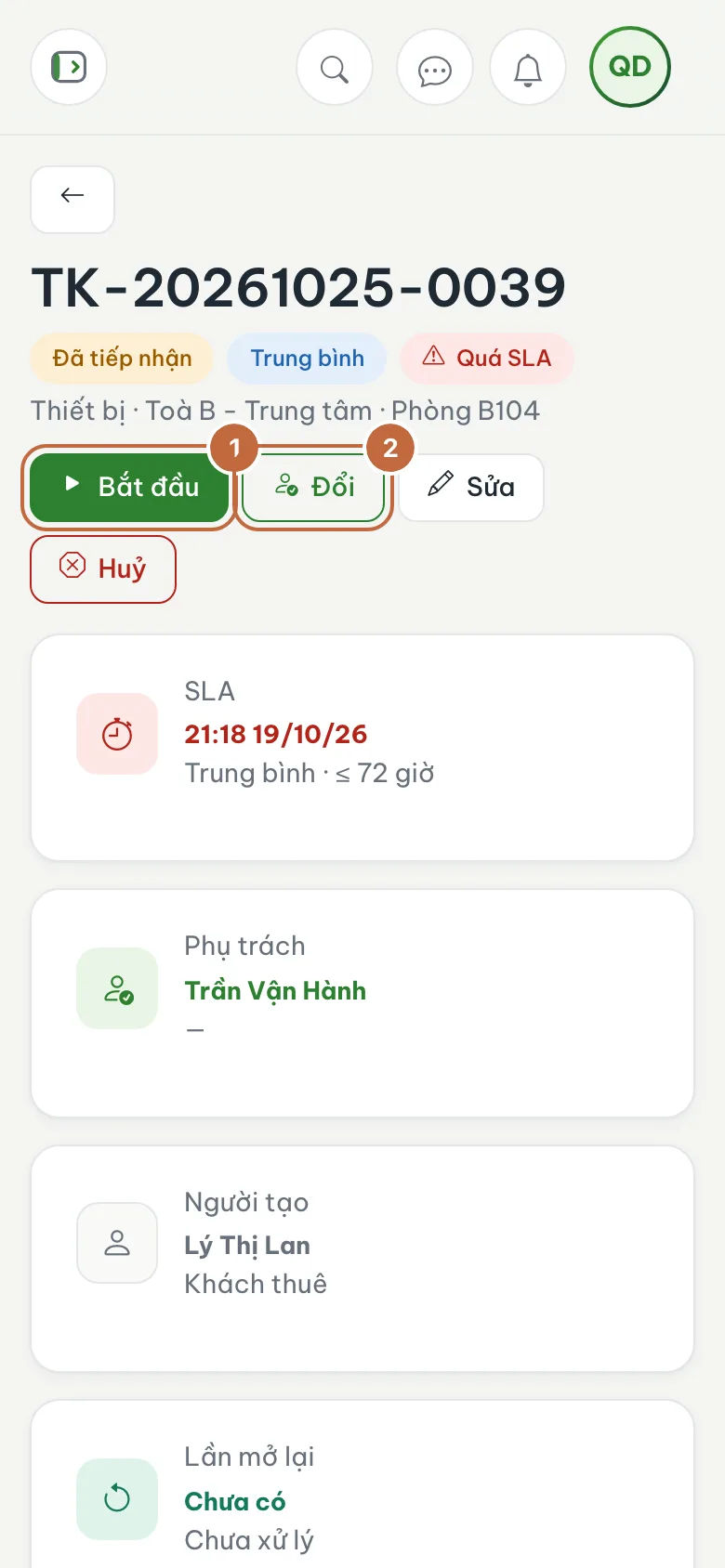
Ticket detail: the Start (①) and Assign or Change owner (②) buttons Record the result and close
Click Resolved, note how it was fixed (at least 10 characters) and attach result photos if any. If the job involved labor or materials, switch on Also record an expense entry to record the cost right away. Finally click Close to finish the ticket.
Watch the SLA column and the Past SLA label to see which job to do first. Use the Overdue filter at the start of each morning.
A ticket that is Resolved or Closed can still be Reopened (with a reason of at least 10 characters). A ticket created by mistake can be Cancelled with a reason. Only a new ticket can be deleted outright.
On mobile
You can open the ticket list in a phone browser and tap each ticket as usual. The action buttons line up at the top of the page, easy to tap with one hand when you are standing in the room.
FAQ
I cannot see Issues / requests in the menu
Your organization's plan does not include this feature, or your role lacks permission to view tickets. Ask the owner to check under Settings › Roles.
Who gets notified when a tenant sends a request?
A new ticket appears right at the top of the Issues / requests list; filter by the New status to see jobs nobody has picked up. The bell icon at the top also shows new notifications.
Next step
Does the issue need an outside tradesperson? Manage vendors and repairers →
Was this article helpful?
Thanks for your feedback!