
Reports answer the big questions: how much came in this month, how much went out, profit or loss, and how many rooms are rented. VinaBos builds them from the invoices, receipts and expenses you have entered, so all you do is pick a period and a building.
Before you start
- Your plan includes the Reports & statistics feature and your role has permission to view reports.
- The more complete your data, the more accurate the report: issued invoices, recorded receipts and approved expenses. See Create invoices and collect payments and Record and approve expenses.
Steps
Open the Reports page
In the menu, under the Operations group, click Reports.
Choose the period
In the Period field (①) pick the month to view; it defaults to the current month. Earlier months are in the same list, handy for comparing.
Filter by building
In the Building field (②) pick one building to see just that one, or leave All buildings to see the total.
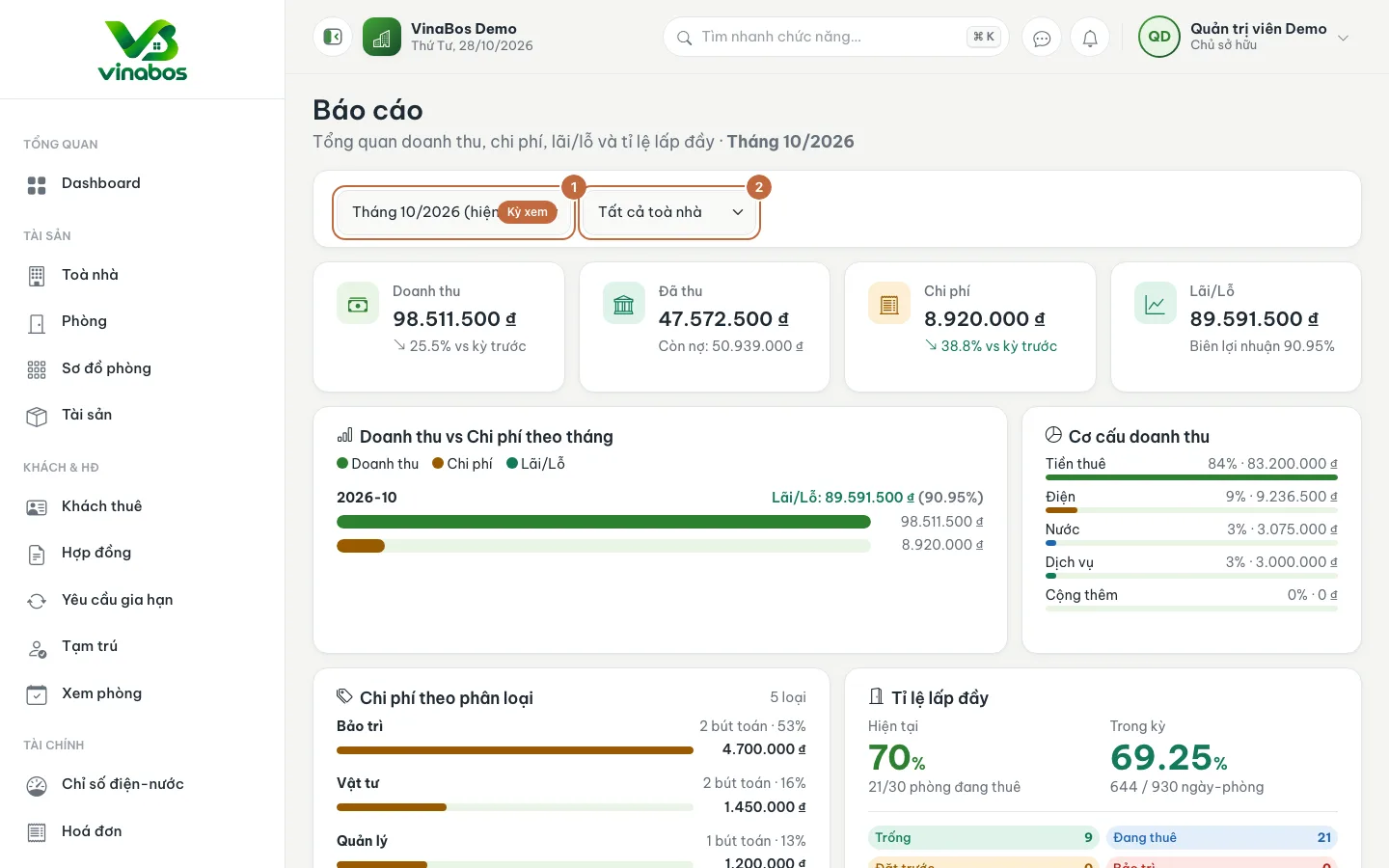
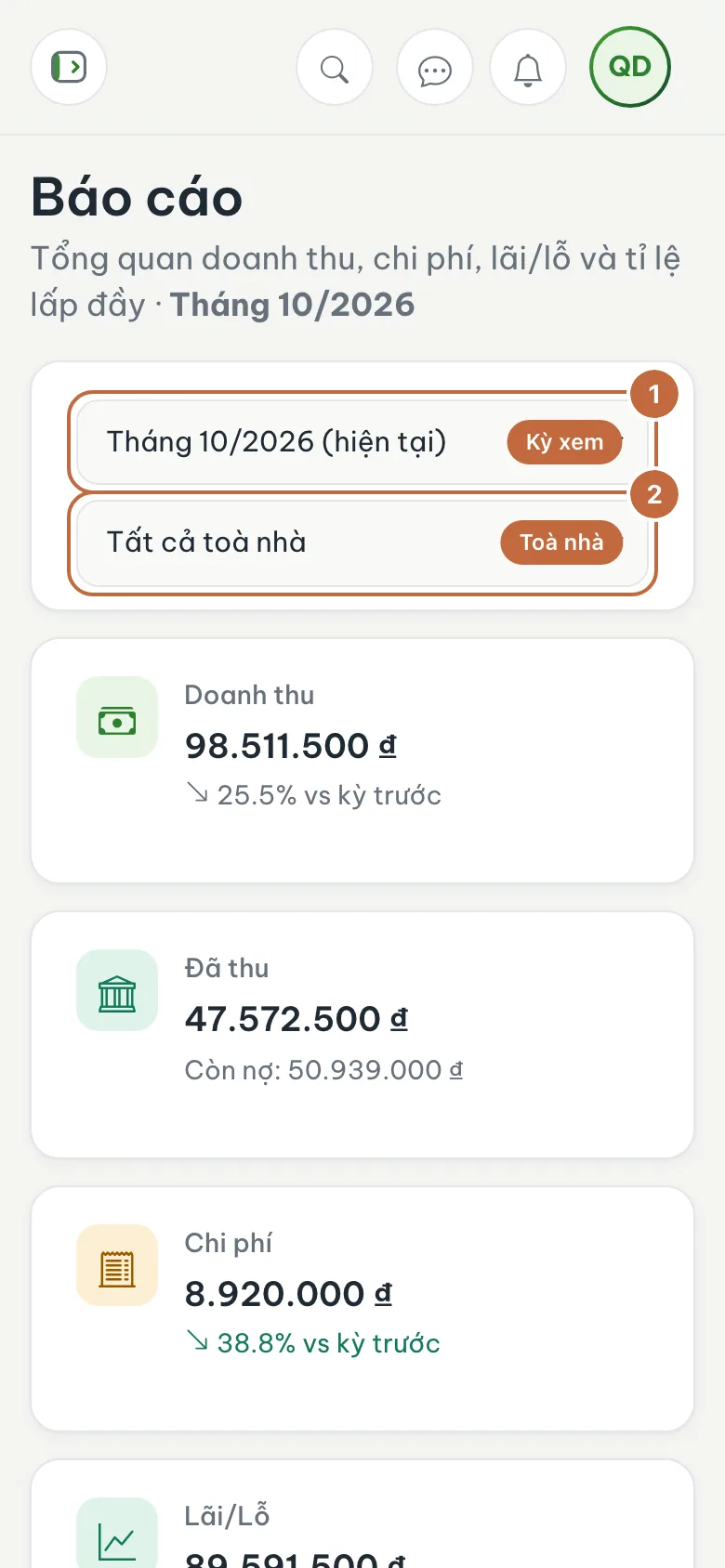
Reports page: choose the Period (①) and Building (②) Read the main cards
The four cards at the top show Revenue, Expenses, Profit/Loss and Collected, compared with the previous period.
Look at the breakdown, expenses and occupancy
The Revenue vs expenses by month chart shows the period's revenue, expenses and profit or loss, and can be viewed for the Last 12 months. Revenue breakdown splits revenue into rent, electricity, water, services and extras. Expenses by category tells you which items cost the most. Occupancy rate shows how many rooms are Occupied, Vacant, Reserved and under Maintenance.
Open the report on the first day of each month and compare it with the previous month. If expenses jump unexpectedly, drill into the categories to see which item pushed them up.
Revenue is based on invoices, while Collected is the money actually received. If the two numbers differ, some invoices are still unpaid; check Outstanding balances.
FAQ
The report shows "No revenue yet"
There are no issued invoices for that period, or you are filtering a building with no data. Choose another period or All buildings.
Can I export the report to a file?
This page is for viewing on screen. If you need to keep it, take a screenshot or print the page from your browser.
Next step
Was this article helpful?
Thanks for your feedback!