Instead of replying to tenants across many different apps, you message right inside VinaBos. Each tenant has their own conversation with property management, and each building can have a community group to announce a water cut, call a residents' meeting or remind everyone of the house rules at the same time.
Before you start
- Your plan includes the Messaging with tenants feature.
- Tenants need an app account to message and join groups; see Create app accounts for tenants.
- Your role has permission to view messages.
Steps
Open the Messages inbox
In the menu, under the Operations group, click Messages. The left column lists conversations. Use the All, Unread, Groups, Mine and Unassigned labels, plus the status and building filters, to find things fast.
Reply to a tenant
Click the tenant's conversation, type in the Type a message… box and press Enter (Shift+Enter for a new line). You can send photos, attach files or insert a saved Quick reply from the lightning icon.
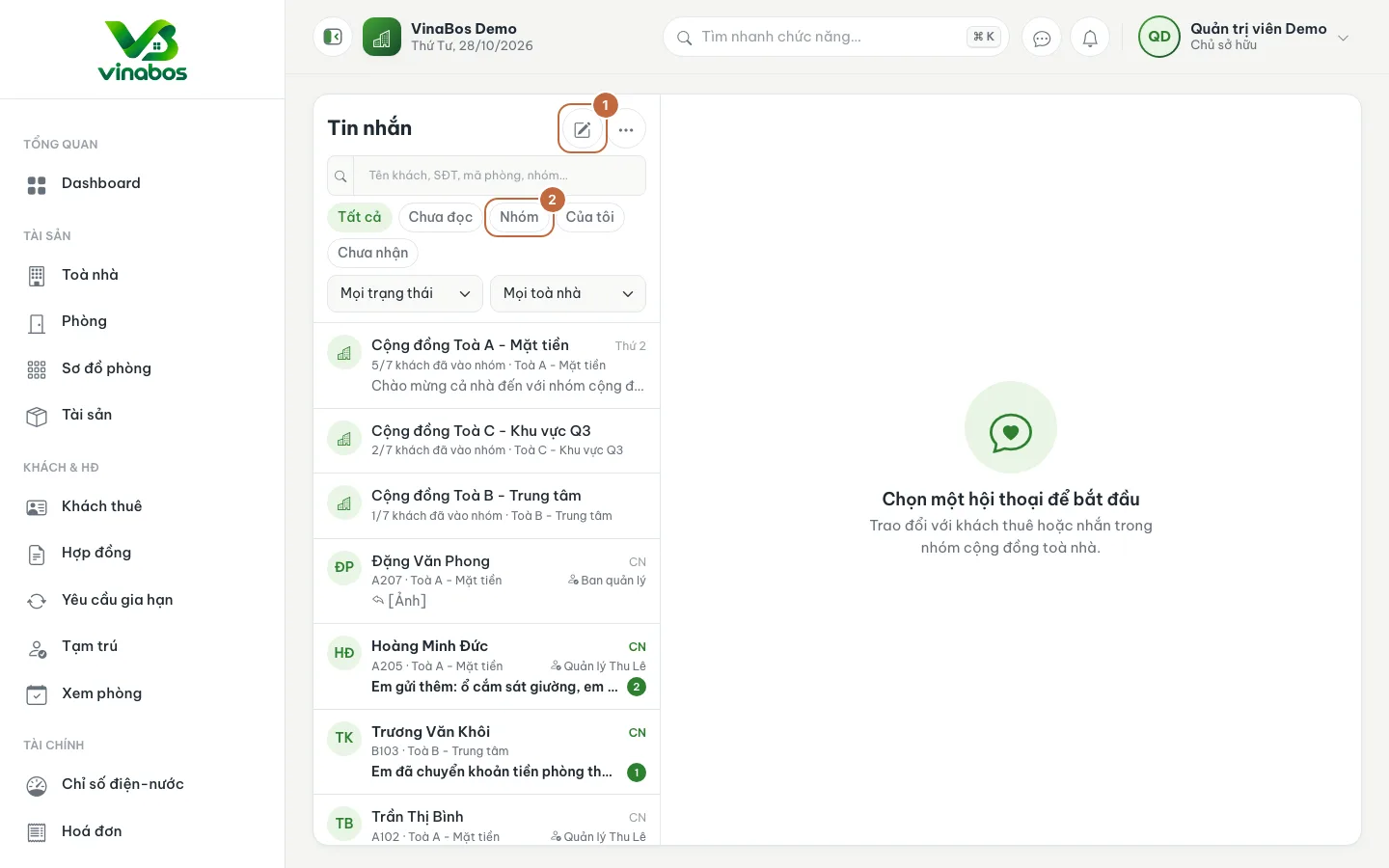
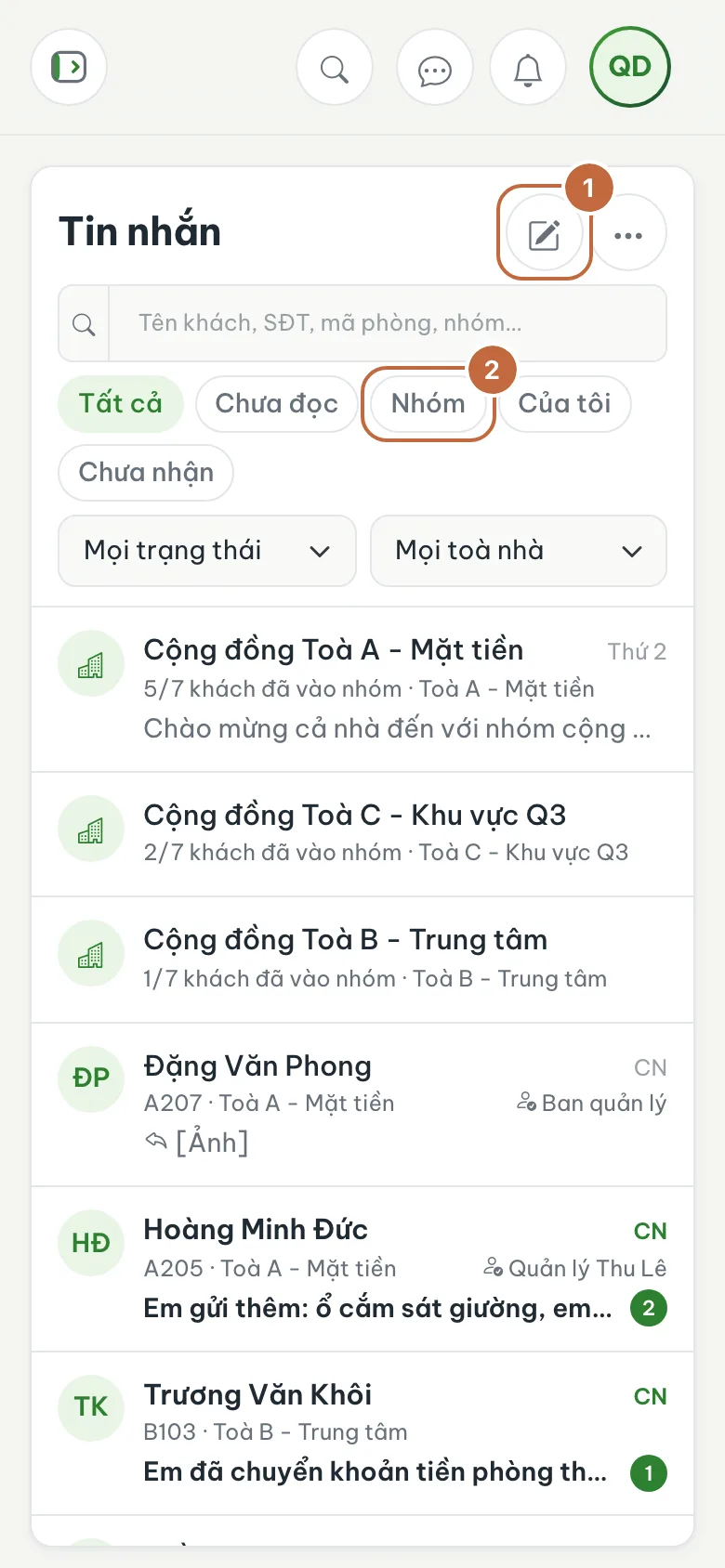
Messages inbox: the Create group button (①) and the Groups filter label (②) Create a community group for a building
Click Create group (①), choose the Building, then click Create community group. Each building has only one group; a building that already has one shows "This building already has a community group". Tenants with an app account for that building join the group.
Post in the group
Open the group in the list (it shows "x/y tenants have joined the group") and message as usual. Click the ⓘ Conversation info icon (①) in the top right corner to see members, edit group details or archive the group.
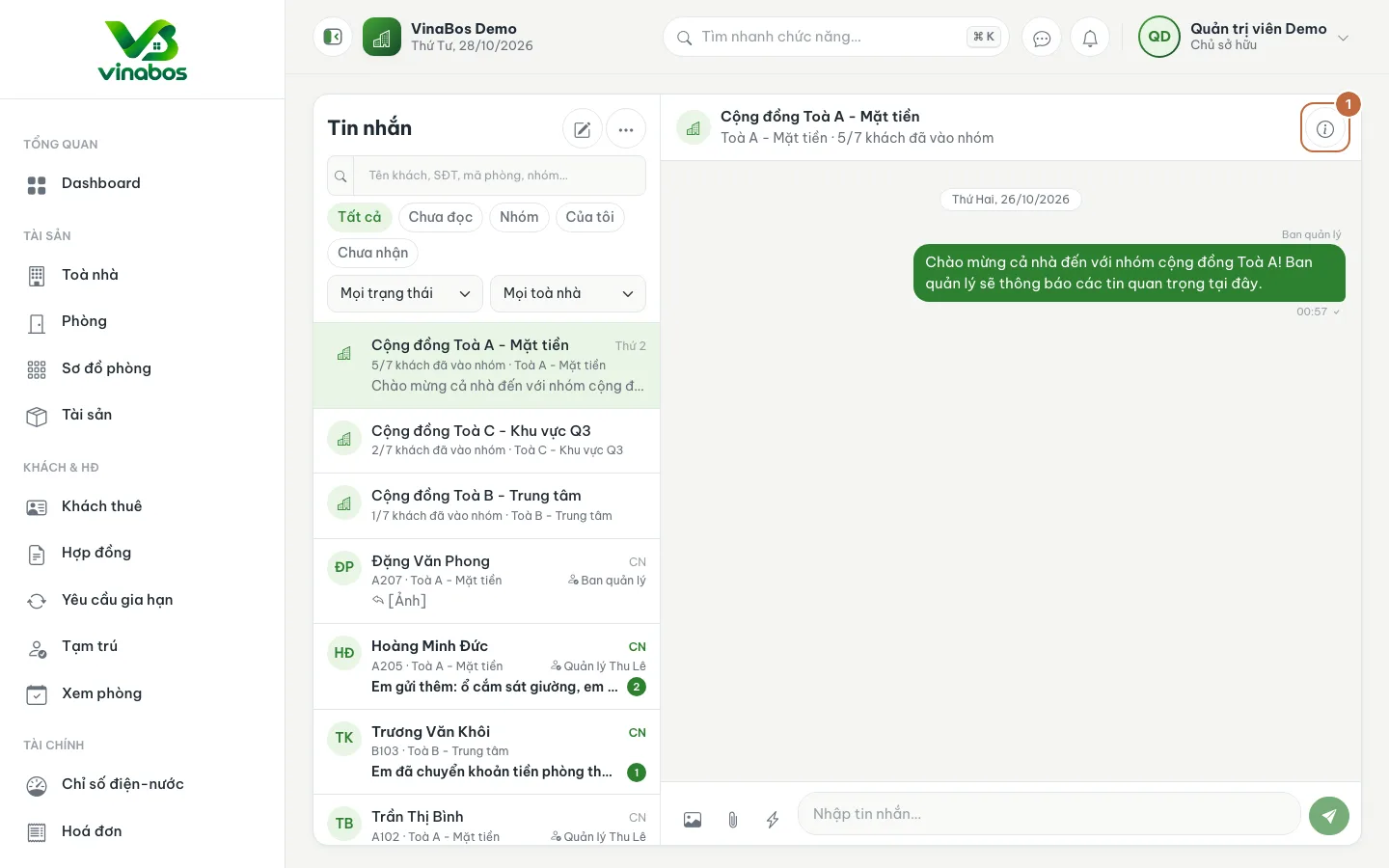
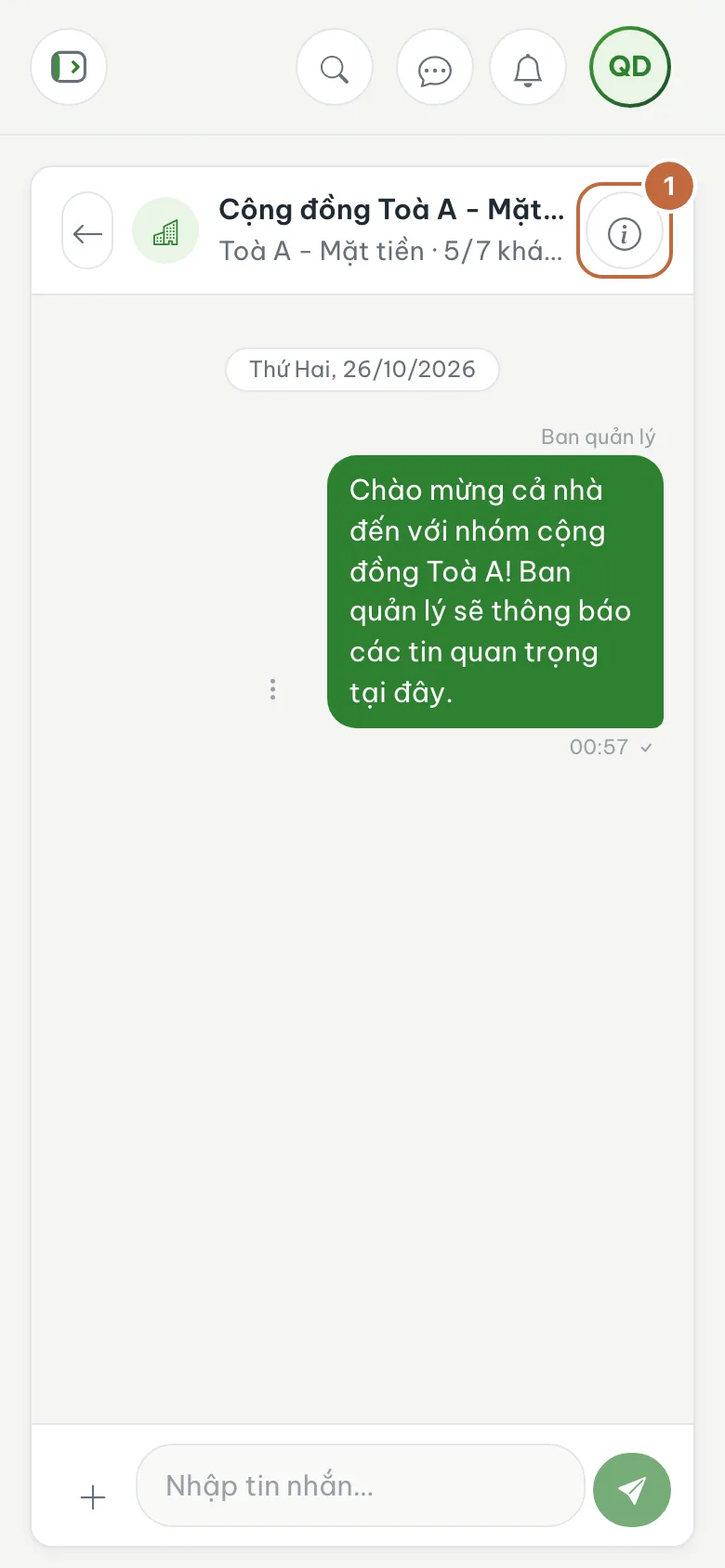
Building community group: the Conversation info icon (①) Recall a message sent by mistake
Select a message in the group and click Recall. The message is hidden for every member, cannot be undone, and can only be done within 15 minutes of sending.
Create a few Quick replies for common questions (hours, how to pay, wifi) under Quick replies in the three-dot menu. Each reply then takes only seconds.
Every tenant in the building can read messages in a community group. Keep private matters such as unpaid rent for one-to-one messages, never post them to the group.
FAQ
Where do archived groups go?
In the three-dot menu, choose Archived groups. Archived groups become read-only, and you can Restore group at any time.
A tenant cannot join the group
Check that the tenant has an app account and belongs to that building. The group shows how many eligible tenants have joined.
Next step
Did a tenant report a problem by message? Receive and handle issues →
Was this article helpful?
Thanks for your feedback!